

Managing the Server Process
UNIX Server
Section titled “UNIX Server”Starting the server process
Section titled “Starting the server process”To start the server process, move to the installation directory and perform the following:
cd /usr/local/tsodbc
./tfodbcd
As an alternative, the server process can be started at system boot and stopped at shutdown. Follow the appropriate procedures for the operating system under which the server is installed.
Stopping the server process
Section titled “Stopping the server process”The server process can be stopped using the following command:
kill –9 ‘process-id’The process-id is derived from the output of the ps command. Locate the tfodbcd process and note the value in the PID column. This is the value to use with the [kill] command.
Change the Default TCP/IP Port (Multiple-Tier only)
Section titled “Change the Default TCP/IP Port (Multiple-Tier only)”Should a conflict arise with the default TCP/IP port (20223), the server can be configured to communicate with the client system on a user specified port number. To enable this, start the server process with the following syntax:
tfodbcd –p port-numberwhere port-number represents an available TCP/IP port number.
Installing the Thoroughbred ODBC SERVER Service
Section titled “Installing the Thoroughbred ODBC SERVER Service”To install the Thoroughbred ODBC SERVER service, the loadservice.sh script will copy service file from the TSODBC directory to the appropriate system directory or the service files can be loaded manually.
To install the Thoroughbred ODBC SERVER service via the script, run the following as root:
# cd /usr/local/tsodbc/TSODBCTo manually install the Thoroughbred ODBC SERVER service:
# cp /usr/local/tsodbc/TSODBC/tsodbc.systemd /etc/systemd/system/tsodbc.service# systemctl daemon-reloadThe service file defaults to running the Thoroughbred ODBC SERVER from the /usr/local/tsodbc directory, listening on port 20223. If the Thoroughbred ODBC SERVER has been installed into a different directory or needs to listen on a different port, change the tsodbc.systemd file before installing the service.
These service files are available starting with release level 8.9.0.
Starting the service
Section titled “Starting the service”To start the Thoroughbred ODBC SERVER service:
# systemctl start tsodbcTo have the Thoroughbred ODBC SERVER service start automatically when the system boots:
# systemctl enable tsodbcStopping the server
Section titled “Stopping the server”To stop the Thoroughbred ODBC SERVER service:
# systemctl stop tsodbcTo prevent the Thoroughbred ODBC SERVER service from starting automatically when the system boots:
# systemctl disable tsodbcWindows Server
Section titled “Windows Server”This section outlines the procedures for starting, stopping, and viewing the service following the install.
Starting the service
Section titled “Starting the service”The service is managed using the Services applet from the Control Panel.
From the Start Menu, select Control Panel → Administrative Tools → Services. Locate the TS ODBC DataServer Manager Service. Click the Start button. A Service Control dialog will display while the system starts the service. Once started, the status field will be changed to “Started”.
Stopping the service
Section titled “Stopping the service”From the Start Menu, select Control Panel → Administrative Tools → Services. Locate the TS ODBC DataServer Manager Service. Click the Stop button. A Service Control dialog will display.
Windows Server
View Running Process
Section titled “View Running Process”This utility can be used to display process information for the TS ODBC DataServer server and associated processes.
To execute the utility, from the Start Menu, choose the Thoroughbred Software program group and click TS ODBC DataServer Process Viewer. A screen similar to the following is displayed:
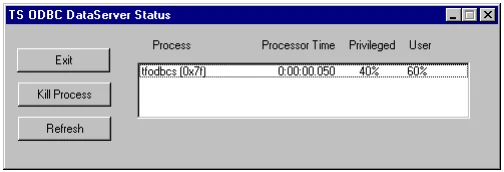
The following options are available:
Exit: Closes the viewer
Kill Process: This will stop the selected process. To select a process, point to the desired process and click. Warning: Killing a process in the manner should only take place after all normal methods have been exhausted. Refer to the Managing the Server Process section in this manual.
Refresh: This list is not dynamic. Click this option to refresh the view data.
From the TS ODBC DataServer Reference, version 8.9.1. Open this page in the PDF