

Software Conventions
The following sections describe Dictionary-IV software conventions.
Screen Navigation
Section titled “Screen Navigation”If you are running VIP (Visual Image Presentation) Gateway for Windows, you may use your mouse to click and double-click on your selections as you normally would in the Windows environment.
If you are not running VIP Gateway for Windows, move through your application by using the Arrow Keys, Tab Key, Function Keys, and Character Keys (0-9, A-Z, etc.).
Function Keys
Section titled “Function Keys”Function keys having the same definition throughout all Thoroughbred products.
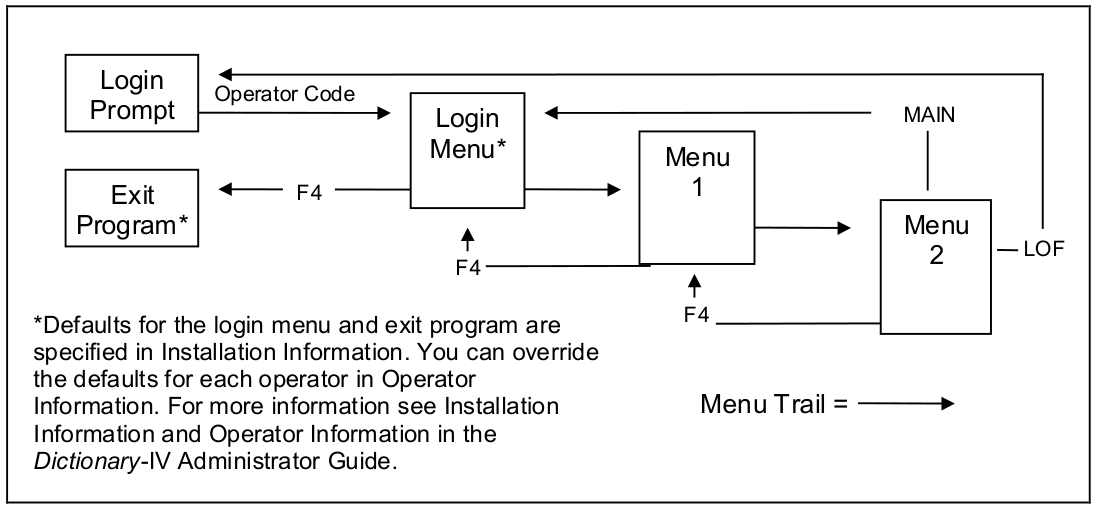
F4 Ends an operation or exits a function. The system allows you to save your addition or change or exit without saving.
F6 Displays on-line help in a window.
Function keys available from the Definition Name field in a Thoroughbred Class (Format, Screen, View, Link, etc.):
F1 Switches maintenance mode (add/change, delete, rename, and copy).
F2 Displays a lookup of definition names. You may select a definition from this list. If you type a full or partial name in the field and press F2, it will use that name (or partial name) to start the list. For example, if you want the list to start with the AR library, type AR and press F2.
F4 Displays the class selector. You may switch class.
Cursor Movement in the Field Edit
Section titled “Cursor Movement in the Field Edit”Left/Right Arrow Moves the cursor one character left or right in the field. The cursor does not exit the field until you exit the edit mode.
Press Right Arrow to move 1 character to the right.

Press Tab to move to the right.

Press Back Tab to move to the left.
Tab/Back Tab Moves the cursor half the width of the input window to the right or left in the field. The cursor does not exit the field until you exit the edit mode. In this example 23 characters is half the width of the window.
Home
If the cursor is on the first character in the field, the system moves it to the last position.
If the cursor is on any other character in the field, the system moves it to the first position.
Press Home to move to the last position in the field.
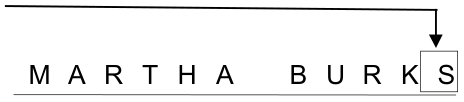

again to move to the first position in the field.
Character Insert/Delete
Press Character Insert in a field to insert characters in the field without typing over any characters.
Press Character Delete in a field to delete characters from the field.
Line Insert/Delete
Press Line Insert to insert a row in a file.
Press Line Delete to delete a row in a file.
Clear Line
Deletes all the characters from the field.
Press Clear Line to remove data from the highlighted character to the end of the field.

- M A R T H A
- B U R K S
Menu Types
Section titled “Menu Types”In Dictionary-IV there are three different types of menus:
- Dictionary-IVPop-up
- Toggle (character-based applications)
Each is described below.
Dictionary-IV A menu screen is used to display options. You must type a selection and press Enter. For example type UTMENU10 and press Enter to see the following:
Dictionary-IV Control Menu
System Date
Installation Name
Menu Description
- Current Enabled
- and Time
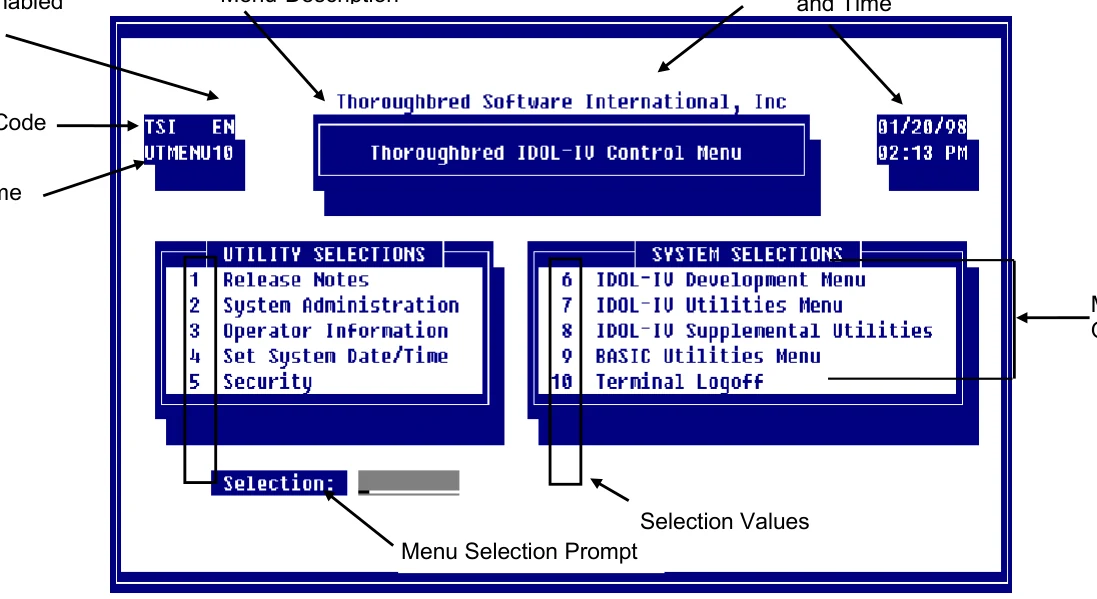
Language
Operator Code
Menu Name
Menu Options
Pop-up Pop-up menus allow you to scroll with a lightbar to highlight an item and press Enter to select it. For example press F1 from any Dictionary-IV menu to see the following pop-up menu:
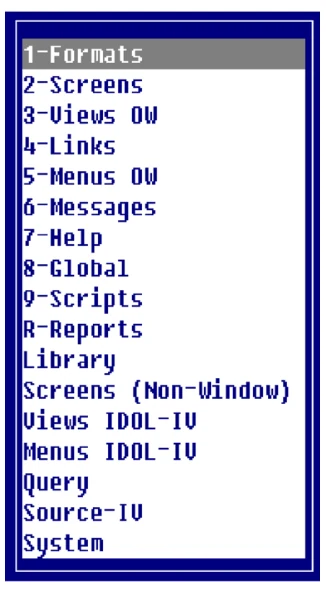
You may select options by:
- Typing the first character of the line and pressing Enter. To select Link definition type 4 and press Enter.
- Using the Down or Up Arrow keys to highlight the option and pressing Enter.
- Using the Home key to toggle between the first and last option in the list.
- Using the Page Up to move to the first option in the list, or Page Down to move to the last option in the list.
Toggle Toggle menus are used in character-based applications and allow you to select one or more items on the menu. Press the Space bar or press the Enter key to toggle.
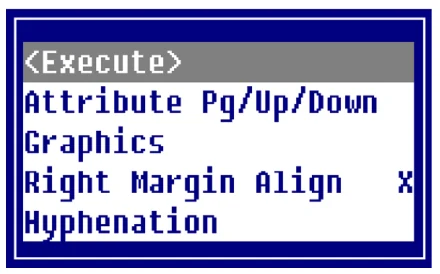
Exit and apply Page Up/Down Graphics mode Right margin text Hyphenation
You must select <Execute> to exit and save your changes. Press F4 to exit without saving and enabling your selections.
Dictionary-IV Menu Selection Field Entry
Section titled “Dictionary-IV Menu Selection Field Entry”From the Selection field on any Dictionary-IV menu you may type the option and press Enter to execute that option. You may also enter the following:
- F1
- Displays the class pop-up menu for Definition Maintenance. This must be enabled through Installation Information. For more information see Installation Information in the Dictionary-IV Administrator Guide. Select the class to be maintained. For more information see pop-up menu in the previous section.
- F2
- Displays the Screen/View database maintenance pop-up menu. Make a selection to perform database maintenance. This must be enabled through Installation Information. For information see Installation Information in the Dictionary-IV Administrator Guide.
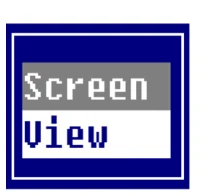
Select Screen and press Enter to select Screen Maintenance.
Select View and press Enter to select View Maintenance.
- F3
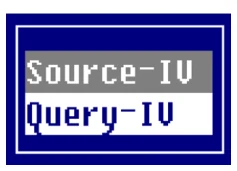
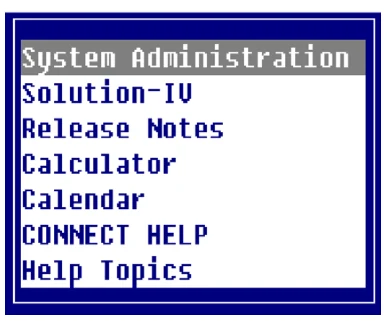
- Displays the Thoroughbred product pop-up menu. This must be enabled through Installation Information. For more information see Installation Information in the Dictionary-IV Administrator Guide.
- F6
- Displays on-line help for the menu.
- ?F6
- Displays help for Menu Selections (F1, F2, ;menu-name, etc.).
- # F6
- Displays on-line help for the specified menu selection. For example, type 1 and press F6 to view the on-line help for option 1.
- F7
- Allows the selection of a language code. This must be enabled through Installation Information. For more information see Installation Information in the Dictionary-IV Administrator Guide.
- F10
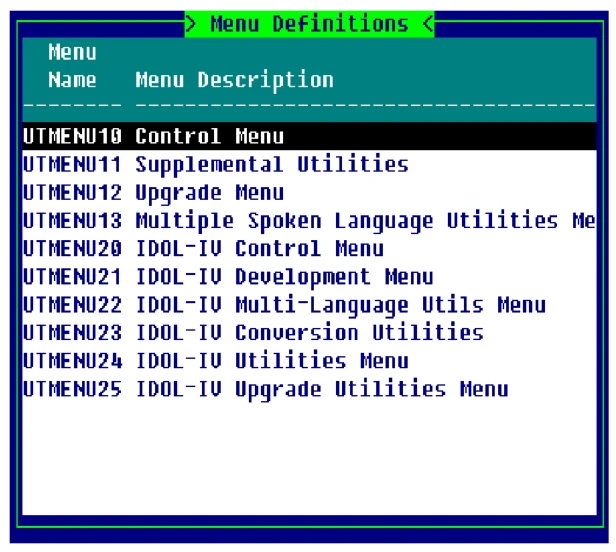
- Displays a lookup of menu names. This is the same typing DM and pressing Enter.
- Ctrl-P
- Activates Desk Services (Hotkey Menu). For more information, see Desk Services Hotkey Menu in the Dictionary-IV Administrator Guide.
- .query
- Type . and the query name to run the specified query.
- .report
- Type . and the report name to run the specified report.
- ;menu
- Type ; and the menu name to display the specified menu.
- /program
- Type / and the program name to run the specified program or script.
- :program
- Type : and the program name to run the specified program or script.
- DBM
- Displays the Screen/View Database Maintenance pop-up menu (see F2). This must be enabled through Installation Information. For more information, see Installation Information in the Dictionary-IV Administrator Guide.
- DM
- Displays a lookup of menu names (see F10).
- ID
- Displays the Dictionary-IV Development Menu.
- LOF
- Logs off and returns to the Operator Code prompt.
- MAIN
- Returns to the login menu and clears the menu trail. For more information on defining this menu see Installation Information in the Dictionary-IV Administrator Guide.
- MRM
- Allows you to perform database maintenance on the selected View, Link, or Format.
- MS
- Accesses the internal mail system. For more information, see Mail System in the Dictionary-IV Administrator Guide.
- SRM
- Allows you to perform database maintenance on the selected Screen, Link, or Format.
- TQ
- Runs Query-IV.
- TS
- Runs Source-IV.
Dictionary-IV Menu Trails
Section titled “Dictionary-IV Menu Trails”A menu trail is created as you move from menu to menu in an application. For example, selecting the Dictionary-IV Development Menu from the Dictionary-IV Control Menu and the Dictionary-IV Utilities Menu from here sets up a menu trail. Pressing the F4 key always takes you to the previous menu in the menu trail.
Menu Processing
Select Messages
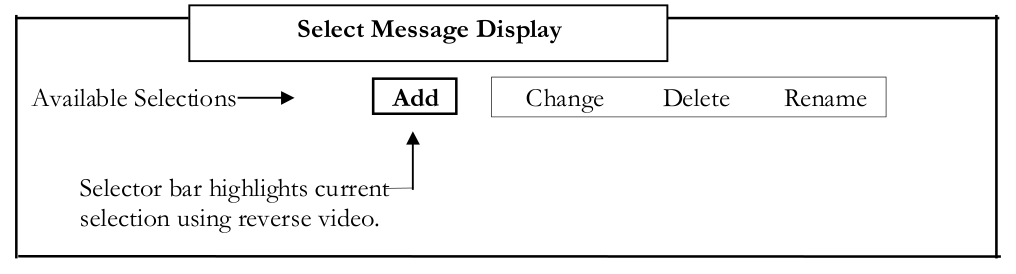
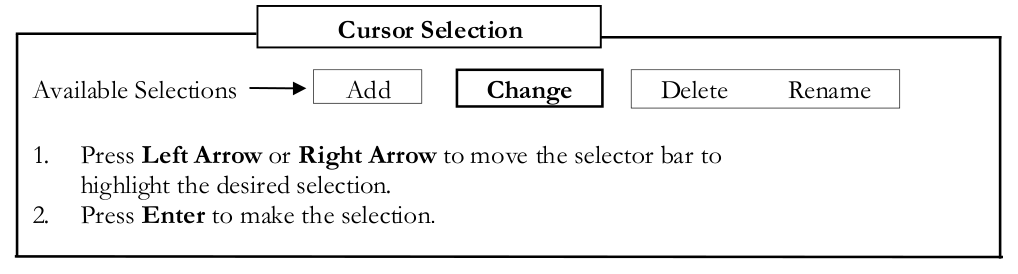
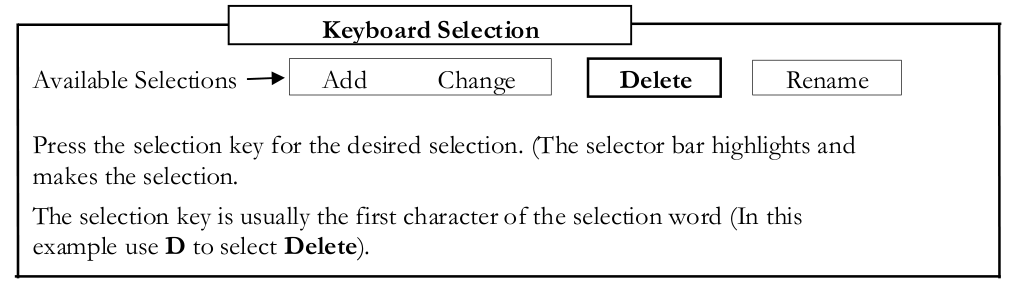
Section titled “Select Messages”A special type of input message called a select message is used to display multiple selections through which the operator can scroll the cursor and make a selection.
Printing
Section titled “Printing”If you select a print option or press F16, Dictionary-IV prompts:
Select Printer (xx, x1x1, x2x2 ):- xx, x1x1, x2x2
- refers to the names of the printers you added during Printer Assignment. For more information see Printer Table Maintenance and Printer Assignment in the Dictionary-IV Administrator Guide.
Type the printer name and press Enter. You can press F1 for a lookup of printer names. Following the Select Printer prompt, the system may display a message Current Window (W) or Entire Screen (S): Enter W to print only the current window (e.g. View or Input Screen) or S to print all data on the screen
F1 Lookup Printer Names
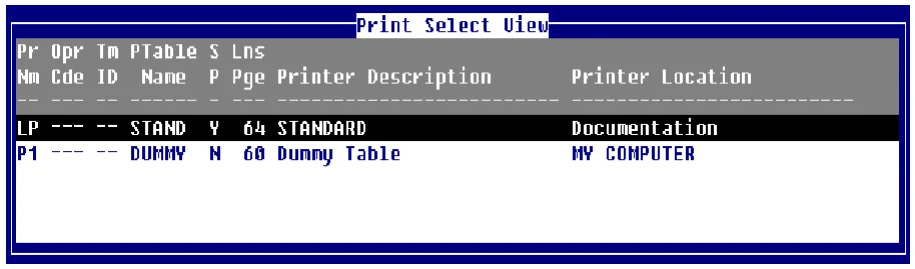
The following values are defined in Printer Assignment. For more information see Printer Assignment in the Dictionary-IV Administrator Guide.
Pr Nm
Printer Name (LP, P1, P2, etc.).
Opr Cde
Operator Code that has this printer open.
Tm ID
Terminal ID that has this printer open.
P Table Name
Printer Table Name.
SP
Spooled (yes/no). Select Yes to send the output to a print spooler.
Lns Page
Number of lines per page.
Common Syntax Elements
Section titled “Common Syntax Elements”Some commands in this manual use common syntax elements, which are explained in this section.
Expressions An expression is two or more elements, consisting of constants, data names, variables, or functions that interact with operators to form a new value.
An expression can be used in a screen data field (formula), and in conditions.
Operators in Expressions
+ addition or string concatenation
- subtraction
- multiplication
| / | division |
| ^ or ** | exponentiation |
| ( ) | grouping |
Numeric expressions are evaluated according to the normal priority convention (grouping, exponentiation, multiplication/division, addition/subtraction).
Logical Conditions A logical condition is two or more values, consisting of constants, data names, variables, functions, or expressions that interact with relational or logical operators to form either a true or false result.
| Operators | in Conditions |
|---|---|
| = | equal to |
| > | greater than |
| < | less than |
| >= or => | greater than or equal to |
| <= or =< | less than or equal to |
| < > or > < | not equal to |
| ( ) | grouping |
| AND | logical AND (both true) |
| LIKE | search for a match using partial values |
| OR | logical OR (either true) |
String
A string is a connected sequence of characters treated as one piece of data.
Substring Substrings can be used in screen data fields, sort definitions, and view commands. They allow you to specify a portion of the original value in a data name.
- Substrings can only be used with alphanumeric data elements.
- Substrings cannot be used with a multiple occurrence data element.
The syntax is as follows:
string-elmt[(start,length)]- string-elmt
- is an alphanumeric data name.
- start
- is the starting position for the substring.
- length
- is the number of characters of the substring.
Examples:
CUST-NAME(1,5)
This specifies the first 5 characters of the CUST-NAME data element.
ITEM-CODE(1)
This syntax is valid only when ITEM-CODE is a multiple occurrence, and it does not specify a substring. This specifies the entire value of the first occurrence in a multiple occurrence data element. For more information see Data Element and Multiple Occurrence in the Dictionary-IV Developer Guide.
Masks (Output Formats)
Section titled “Masks (Output Formats)”A mask specifies the format in which numeric data is displayed or printed. A mask can be used in screen data fields, reports, queries, and scripts.
Masks allow you to specify the same output format regardless of the size of the number. They also allow you to output financial symbols and characters (for example to format 563204 as $5,632.04-), and to retain insignificant zeros (for example to output 1 as 1.00).
Syntax
The syntax is as follows:
num-elmt:”mask”- num-elmt
- is a numeric data name, formula, or multiple occurrences.
- mask
- is one or more mask characters.
Mask Characters Each digit in the numeric value that is output must match up with a mask character. Mask characters determine the output. You can specify more mask characters than there are digits in the numeric value.
An insignificant zero is a leading or trailing zero. A floating character is output at the rightmost leading zero.
- 0
- Outputs a digit from 0 to 9. When the digit is an insignificant zero, it outputs a 0.
- #
- Outputs a digit from 0 to 9. When the digit is an insignificant zero, it outputs a space.
- .
- Outputs a decimal point between digits. If the number is 0 and 0 is not used in the mask, it outputs a space.
- ,
- Outputs a comma between digits if the digit to the left is a significant digit; it can only be used to the left of the decimal point.
- $
- Outputs a dollar sign.
-
Outputs an asterisk when the digit is a leading zero.
Outputs a minus sign if the number is negative, or a space if the number is positive. This mask character can be placed at the left or right of the mask. If placed to the left, it is a floating character.
- +
- Outputs a plus sign if the number is positive, a minus sign if the number is negative, or a space if the number is zero. This mask character can be placed at the left or right of the mask. If placed to the left, it is a floating character.
- CR
- Outputs a CR (to indicate a credit) if the number is negative, or 2 spaces if the number is positive. This mask character must be placed at the right of the mask.
- DR
- Outputs DR (to indicate a debit) if the number is positive, a CR if the number is negative, or a space if the number is 0. This mask character must be placed at the right of the mask.
- (
- Outputs a left parenthesis if the number is negative, or a space if the number is 0 or positive. This mask character must be placed at the left of the mask.
- )
- Outputs a right parenthesis if the number is negative, or a space if the number is 0 or positive. This mask character must be placed at the right of the mask.
- B
- Outputs a space.
- ????
- Outputs any characters other than the mask characters and places them in the specified position.
From the Dictionary-IV User Guide, version 8.9.1. Open this page in the PDF