

F15 Character/Graphics Mode Video Attributes, Graphics, and Color
Use this function to specify the text and background attributes to be used in the window and, if you are using a properly configured color terminal, the use of foreground and background color.
If you are operating on a black and white terminal:
- You can only select the window attributes (any combination of reverse video, underscore, background, and blink).
If you are operating on a color terminal:
- You can select the window attributes (any combination of reverse video, underscore, background, and blink).
- You can select from up to 16 colors for the text foreground and background on your custom screen. You can only select colors if the Save Color Maps have been enabled in Installation Information. For more information see Installation Information in the Dictionary-IV Administrator Guide.
The window attributes and colors should be set before entering text or codes. To change them for text already entered, you must select window attribute and/or color then type over the existing text.
Press F15 and the system displays the following:
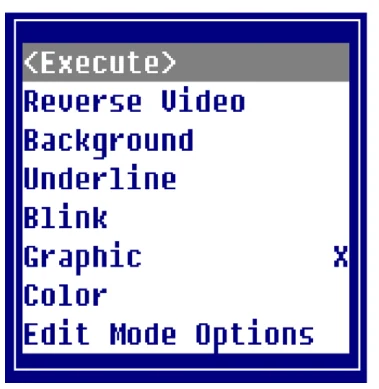
You may toggle Reverse Video, Background, Underline, Blink, Graphic, and Color on and off from this option. Once you make your selection select <Execute>.
A status bar appears at the bottom of the screen that displays currently selected attributes.
Window Attributes
The window attributes available are:
None
Full intensity characters.
Reverse Video
Full intensity background (area

around characters).
Background


Half intensity (can be characters or background).
Blink


Blinking area of screen.
Underline

Underscored area of screen.
These attributes may be used in any combination providing 16 different combinations.
It is important to remember that underscore and blink are not supported by all terminals.


- Foreground
- Background
Set your default window attributes in the Window Configurator. For more information see Window Configurator in the Dictionary-IV Administrator Guide.
Foreground/Background Color
There are 16 colors available for the Foreground and Background.
These colors display only if the option for Display Default Colors in the Operator Code screen is set to N. If this option is not specified or is set to Y, the default colors from the color selector will be used when the window is displayed. For more information see Operator Code, Operator Information, and Window Configurator in the Dictionary-IV Administrator Guide.
When you make your selections, the system displays a sample at the bottom of the window.
Using Attributes/Color Setting
| Keys available | in this option are: |
|---|---|
| Left Arrow | Moves the lightbar left across the |
| Foreground/Background color. | |
| Right Arrow | Moves the lightbar right across the |
| Foreground/Background color. | |
| Up Arrow | Moves the lightbar up from Foreground Background |
| attributes. | |
| Down | Moves the lightbar down from Foreground |
| Arrow | Background attributes. |
| F4 | Exits and apply the changes. |
| F6 | Displays on-line help. |
| F7 | Restores the original attribute/color settings. |
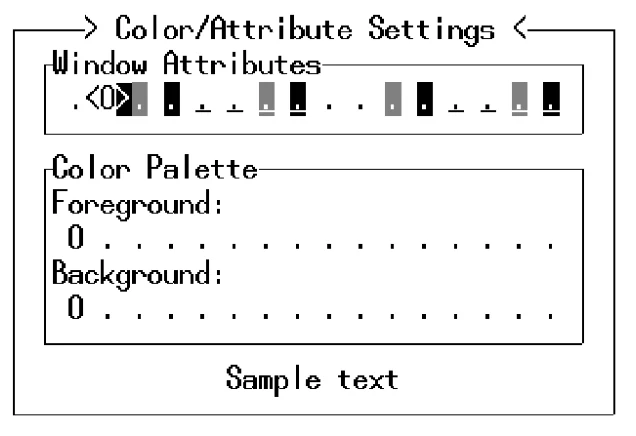
Place the cursor where the window attribute or color is to begin. Select the Attribute/Color Settings option. The system displays one of following:
Color Terminal
Black and White Terminal
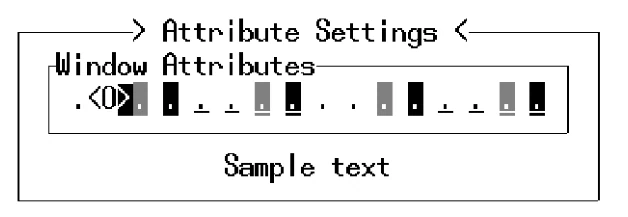
The <0> indicates the current setting. Use the appropriate arrow keys to make your selection. Your selections appear at the bottom of the window as sample text.
Press F4 to save your selection and exit. Type the text or press F5 to insert an entry field. The system displays the text or entry field using the attribute/color selection you have chosen.
You may continue using this selection or make another selection. When you save and exit the screen modifications, the system saves the attributes/color selections you made. If you create another screen, the system returns to your default colors.
These default colors are defined in the Window Configurator. For more information see Window Configurator in the Dictionary-IV Administrator Guide.
Character/Graphic Mode
Select this option to toggle between character and graphic mode.
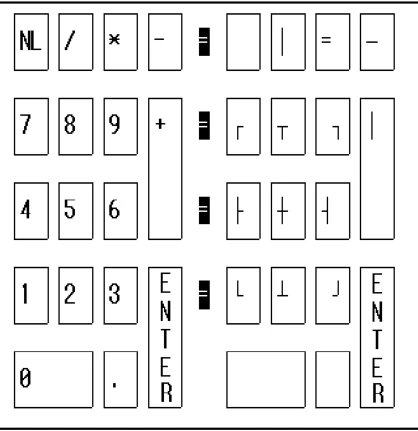
In the character mode, the numbers operate normally. In the graphic mode they create graphic lines.
The following figure shows the numeric keypad in the character mode (left) and in the graphic mode (right).
Character/Graphic Mode
The cursor keys and edit keys still function as in character mode. All other keys are invalid and a “ring bell” will occur if they are used.
Cursor movement will be clockwise after graphic corners are entered and will go in the direction of an intersect graphic character. A graphic center intersect will use the last direction mode.
Before you can begin to create applications using Dictionary-IV, you must prepare your system. Procedures with which you must be concerned include: creating operator codes, providing security, and system configuration.
From the Dictionary-IV User Guide, version 8.9.1. Open this page in the PDF