

Class Definition
The System Dictionary allows you to create and maintain the following Class definitions: Formats, Screens, OPENworkshop Views, Links, OPENworkshop Menus, Messages, Help, Global Dictionary, Scripts, Reports, Library, Screens, Dictionary-IV Views, Dictionary-IV Menus, Query, Source, and System.
The following options are available for Class definition Maintenance:
- Edit
- Adds, changes, deletes, renames, and copies Class definitions.
- List
- Lists the Class type, name, description, password, creation date, last change date, and last change time to the terminal or printer.
- Prints the Class type, name, description, password, creation date, last change date, and, last change time.
Definition Edit
Section titled “Definition Edit”Select 1-Edit from the Dictionary-IV Development Menu or press F1 at any Dictionary-IV menu.
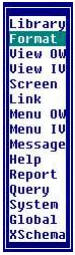
Select the Class definition to maintain. The system displays the Class definition view. For more information about performing maintenance from the view or changing the appearance of a view, see CONNECT VIEW in the Dictionary-IV User Guide.
Components of Class Definition
Section titled “Components of Class Definition”Class definitions can be composed of three parts: header information, detail information, and editors.
Class Definition Header Information
Section titled “Class Definition Header Information”There are common features in all Classes of definition maintenance.
[Class] Name Contains from 3 to 8 alphanumeric characters for the name of a Class definition. This field is mandatory.
Characters one and two are the Library name. Characters three through eight are the Class definition name. For more information about guidelines, see Library Maintenance and Class definition Naming Guidelines.
[Class] Description Contains from 1 to 40 alphanumeric characters for the description of this definition. This is an optional field.
Last Change Date
Displays the date of the last change to the selected Class definition.
Create Date
Displays the date of creation of the selected Class definition.
Class Definition Detail Information
Section titled “Class Definition Detail Information”The detail of a Class definition can come in the form of attributes or an editor window.
Attributes/Specifications See each individual Class for descriptions of these attributes (specifications). In Format definition they include the length, entry type, valid entries, etc. for each Data Name. For more information, see the individual Class definition.
Editor Windows Editor Windows allow you to enter text, position it in a window, and define display attributes (graphic/color). They include the Screen Editor, View Editor, Help Editor, Text Fields, and Source-IV Editor.
Class Definition Maintenance
Section titled “Class Definition Maintenance”For information on performing maintenance from a view or changing the appearance of a view see CONNECT VIEW in the Dictionary-IV User Guide.
Definition List
Section titled “Definition List”This function is used to list Class definitions. The listing can display on the terminal or output to a printer.
If you are operating in a Multi-Language environment see Multi-Language in the
Dictionary-IV Administrator Guide.
Select 2-List from the Dictionary-IV Development Menu. The system prompts:
Do you want a printed copy?
Select one of the following:
- Y
- The system asks for the printer name.
- N
- The system displays the output at the terminal.
If you select to print, the system prompts:
Select printer (LP, P1, Pn):
- LP, P1, Pn
- is the name of the printer.
For more information, see Printing in the Dictionary-IV User Guide. Type the name of the printer and press Enter. If security is active the system prompts:
To List Passwords, Enter the System Password:
You must enter the system password to obtain a listing that includes definition passwords.
Definition Listing
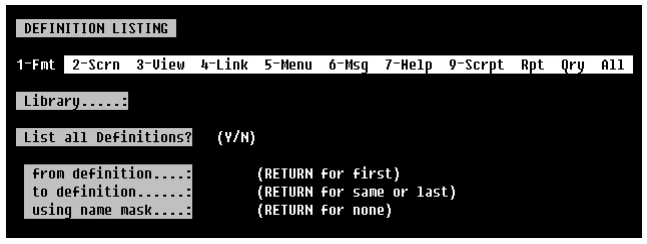
Class Selector Message→
Enter the following information:
Class Selector message
Select the Class to list or type A for all Classes. Press Enter.
Library
Type the Library name for which you want a listing of definitions and press Enter.
List all definitions?
Select one of the following:
- Y
- Lists all definitions. You cannot select a range or mask.
- N
- Positions the cursor at the next field.
from definition
Type the name of the first definition in the range to list and press Enter. The default is First.
to definition Type the last definition name in the range to list and press Enter. The default is Last. If you enter a name in the “from definition” field and press Enter in this field, the system repeats the Class definition name. This allows you to list the information for one definition.
using name mask A name mask allows you to select Definitions without specifying individual names. It sets up a matching test. The system selects only those Definition names that match the mask.
Type from 1 to 6 alphanumeric characters for the mask to use. Then press Enter. The default is None.
A mask contains match and pass characters. The match character must match case and position exactly. The pass character (?) indicates there is no match in this position.
| Mask | Action | Definition Names |
|---|---|---|
| MENU1? | Selects | MENU1 through MENU19 |
| Ignores | MENU2 through MENU99 menu2 through menu99 Menua through MENUZZ menua through menu zz |
If you are operating in a Multi-Language environment the system prompts you through the languages. For more information, see Library Maintenance (Delete Library) in this document.
The system prompts:
Is the displayed information correct?
Select one of the following:
- Y
- Displays or prints the listing.
- N
- Allows you to make corrections or exit without listing.
The system then displays or prints the listing, which includes the following information.
Definition Listing Sample
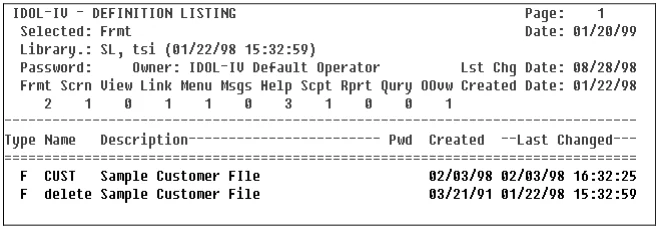
Press F4 or Enter to exit the list. The system displays the definition listing screen so that you can select another listing.
Definition Print
Section titled “Definition Print”Use this function is to print definition reports. Definition reports are copies of the actual definitions, containing all of the header, detail, and editor information. These reports are used primarily in design of definitions and as an aid for Definition Maintenance.
If you are operating in a Multi-Language environment see the Dictionary-IV Administrator Guide.
Select 3-Print from the Dictionary-IV Development Menu. The system prompts:
Select printer (LP,P1, Pn):
- LP, P1, Pn
- is the name of the printer.
For more information, see Printing in the Dictionary-IV User Guide. Type the name of the printer and press Enter.
Print Options for All Classes
Section titled “Print Options for All Classes”Enter the following information:
Definition Report
Select the Class to list or type A for all Classes. Press Enter.
Library
Type the Library name for which you want definitions printed and press Enter.
Print everything?
Select one of the following:
- Y
- Prints all definitions in the Library. You cannot select a range or mask.
- N
- Positions the cursor at the next field.
from definition
Type the name of the first definition in the range to print and press Enter. The default is First.
to definition Type the name of the last definition in the range to print and press Enter. The default is Last. If you enter a name in the “from library” field and press Enter in this field, the system repeats the definition name. This allows you to print one definition.
using name mask Type from 1 to 6 alphanumeric characters for the mask to use. Then press Enter. The default is None.
For a description of using a name mask see Definition List in this document.
If you are operating in a Multi-Language environment the system prompts you through the languages. For more information, see Library Maintenance (Delete Library) in this document.
The system prompts:
Is the displayed information correct?
Select one of the following:
- Y
- Prints the report or provides print options. For more information, see Print Options by Class.
- N
- Allows you to make corrections or exit without printing.
Print Options by Class
Section titled “Print Options by Class”Depending upon the report, the following print options are available:
- Summary or detail report.
- Print with on-line help documentation.
- Print with passwords.
- Definition-specific options.
If at any time you want to interrupt the printing, press the Esc key (on some systems, the Del key), and you will be asked if you want to interrupt the printing.
Formats
The system prompts:
- S-Summary
- D-Detail
Select one of the following:
- S-Summary
- Prints the report without the variable-length parameters (valid entries, default values, delete record, security, message, pre-processing, post-processing, and audit).
- D-Detail
- Prints the report with the variable-length parameters.
The system then prompts (for both summary and detail):
Do you want to print on-line help documentation?
Select one of the following:
- Y
- Prints the on-line help documentation associated with each Data Name.
- N
- Does not print on-line help documentation.
The system prompts:
Print data-name descriptions: Selected languages
Select one of the following:
- None
- Does not print the Data Name descriptions.
- Selected languages
- Prints the Data Name descriptions.
The system prints the report to the selected printer.
Screens
The system prompts:
- S-Standard
- W-Windows
Select one of the following:
- S-Standard
- Prints the standard screens only (non-windows).
- W-Windows
- Prints the window screens only.
- If you
- are operating in a Multi-Language environment the system prompts you through the
languages. For more information, see Library Maintenance (Delete Library) in this document.
The system then prompts (for both standard and window screens):
- S-Summary
- D-Detail
Select one of the following:
- S-Summary
- Prints the report without formulas and screen display codes.
- D-Detail
- Prints the report with formulas and screen display codes. It also prints the associated link report and summary report.
The system prints the report to the selected printer.
Views
The system prompts:
- S-Summary
- D-Detail
Select one of the following:
- S-Summary
- Prints the view without the associated link report summary format report.
- D-Detail
- Prints the report with the associated link report summary format report.
- If you
- are operating in a Multi-Language environment the system prompts you through the
languages. For more information, see Library Maintenance (Delete Library) in this document.
The system prints the report to the selected printer.
Links
The system prints the Links report to the selected printer.
Menus
The system prompts:
- S-Summary
- D-Detail
Select one of the following:
- S-Summary
- Prints the menu without the associated screen.
- D-Detail
- Prints the report with the associated screen report.
The system then prompts (for both summary and detail):
Do you want to print on-line help documentation?
Select one of the following:
- Y
- Prints the on-line help documentation.
- N
- Does not print the on-line help documentation.
The system prints the report to the selected printer.
Messages
The system prompts:
- 1-Prompt/Constant
- 2-NonInput 3-Yes/No 4-Input
A-All
Select the type of message or All messages. The system prompts:
- S-Summary
- D-Detail
Select one of the following:
- S-Summary
- Prints the messages report without parameters and without the option for printing on-line help documentation.
- D-Detail
- Prints the messages report with parameters and the option to print on-line help documentation.
- If you
- are operating in a Multi-Language environment the system prompts you through the
languages. For more information, see Library Maintenance (Delete Library) in this document.
The system prints the report to the selected printer.
Help
The system prompts:
- S-Standard
- W-Windows
Select one of the following:
- S-Standard
- Prints the help report for standard Help definitions (non-window).
- W-Windows
- Prints the help report for window Help definitions.
- If you
- are operating in a Multi-Language environment the system prompts you through the
languages. For more information, see Library Maintenance (Delete Library) in this document.
The system prints the report to the selected printer.
Global Dictionary
The system prints the Global Dictionary report to the selected printer.
Script
The system prompts:
1-Primary 2-Cont 3-Overlay 4-FM Pre/Post 5-Copy 6-Public A-All
Select the type of script or A-All scripts. The system prompts:
- INCLUDE Command Statements: Bypass
- Include
Select one of the following:
- Bypass
- Does not merge INCLUDE scripts.
- Includes
- Merges INCLUDE scripts into the report.
For more information, see the Script-IV Language Reference Manual.
The system prints the report to the selected printer.
Report
The system prompts:
Do you want to include formulas?
Select one of the following:
- Y
- Prints any formulas that exist in the selected reports.
- N
- Does not print formulas in the selected reports.
- If you
- are operating in a Multi-Language environment the system prompts you through the
languages. For more information, see Library Maintenance (Delete Library) in this document.
The system prints the report to the selected printer.
Query If you are operating in a Multi-Language environment the system prompts you through the languages. For more information, see Library Maintenance (Delete Library) in this document.
The system prints the Query report to the selected printer.
Definition Naming Guidelines
Section titled “Definition Naming Guidelines”File names consist of the Library Name and Definition Name.
Definition names may be from 3 to 8 characters long. Characters one and two are the Library name. Characters three through eight are the definition name.
The valid characters are numbers and upper and lowercase alphanumeric characters. For more information, see Library Maintenance in this document.


Library Name
ABCDEFGHIJKLMNOPQRSTUVWXYZ
abcdefghijklmnopqrstuvwxyz
0123456789
Examples:
PL | Incorrect – Must be at least 3 characters. |
PLTEST> | Incorrect – The > is not allowed. |
PL Test | Incorrect – The space is not allowed. |
PL1 | Correct |
PLTEST | Correct |
PLTEST1 | Correct – This name is different than pltest1. |
All definition names within a Class are unique, but definitions in different Classes can have the same name.
| Examples: | ||
|---|---|---|
| Format Class | Screen Class | View Class |
| ARCUSMAS | ARCUSMAS | ARCUSMAS |
| ARPROS1 | ARCUSADR | ARCUSADR |
| ARPROS2 | ARPRSPCT | ARPRSADR |
If you are going to develop a large application, it is strongly recommended that you develop naming conventions for your definitions. This consistency will help you identify and maintain definitions. You may wish to use the same, or a similar, name for definitions that are related.
If you enter a format name at database maintenance, the screen, view, link, and file names are automatically created for you with the same name as the format. This feature helps you to identify related database definitions by keeping the names the same.
It is also a good idea to reserve the last character of the name for numbering related definitions. For example:
| Name | Description |
|---|---|
| MKFPMF1 | Marketing: Prospect Master File Format |
| MKSPMF1 | Marketing: Prospect Master File Screen |
| MKVPMF1 | Marketing: Prospect Master File View |
| MKFPMF2 | Marketing: Hot Prospects File Format |
| MKSPMF2 | Marketing: Hot Prospects File Screen |
| MKVPMF2 | Marketing: Hot Prospects File View |
| MKPPMF2 | Marketing: Hot Prospects File Script |
| MKKFPWF1 | Marketing: Prospect Work File Format |
| MKSPWF1 | Marketing: Prospect Work File Screen |
| MKVPWF1 | Marketing: Prospect Work File View |
| MKRPWF1 | Marketing: Prospect Work File Report |
Below is a naming convention you may wish to implement.
| L L T N N N | N S | |
|---|---|---|
| LL | specifies | the Library name. |
| T | specifies the definition type (see below). | |
| F | format | |
| S | screen | |
| V | view | |
| L | link | |
| M | message Dictionary | |
| H | help | |
| P | Script (Procedure) | |
| Q | Query (Query-IV) | |
| R | Report (Report-IV) | |
| B | BASIC Program (3GL) |
NNNN specifies the module name (definition descriptor).
- S
- specifies the definition suffix (see below). 0-9 Physical formats (for a data file). Physical screens (for screen Database Maintenance). Physical views (for view Database Maintenance). A-Z Logical formats (not associated with a data file). Report Parameters. Views used in the PRINT VIEW command in scripts. Other Definitions not associated with a data file.
Note: A blank character is a valid character in path and file names.
From the Dictionary-IV Developer Guide, version 8.9.1. Open this page in the PDF