

How to Compile from the Script Editor
Use the script editor to compile a single script. To compile from the script editor, you must access the script you plan to compile, for example:
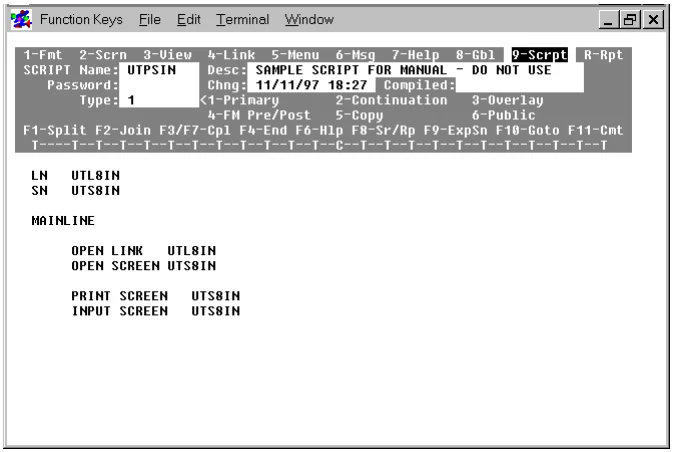
To begin the compilation process, press the F3 or F7 key. The following message will be displayed:
Do you want to save and compile (Y/N)?Y starts the procedure.
N halts the compilation process. Control returns to the script editor.
Press the Y key. The following screen will be displayed:
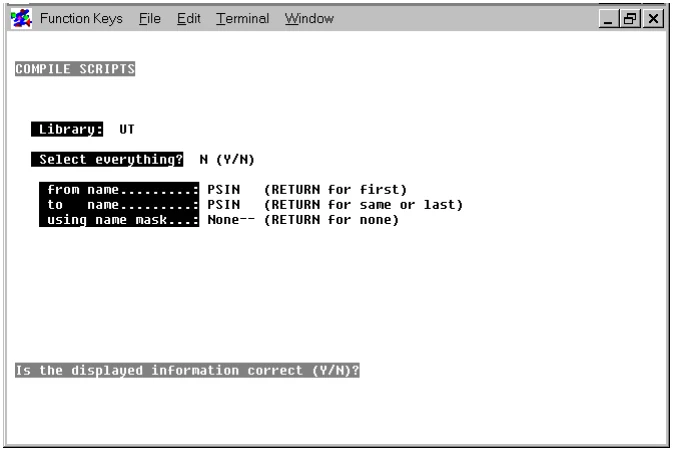
Script-IV fills in the compilation information. You must answer the question at the bottom of the screen:
Is the displayed information correct (Y/N)?Y begins compilation using the displayed information.
N enables you to re-specify the displayed information.
Press the Y key to compile the script. The script code will be listed as it is compiled. To stop the compilation process at any time, press the Escape key.
Errors pause compilation. Take one of the following actions:
- To halt compilation, press the F4 key.
- To continue compiling after an error is encountered, press the
Enter key. - If there is no response after 15 seconds, compilation continues as if the Enter key was pressed.
- If you started the compile from the Script-IV script editor, you can return to the script editor by pressing the F1 key. You can fix the error, then press the F3 or F7 key to compile the script.
For more information on the errors you may encounter, see the sections on How to Manage Compilation Errors and Error Messages.
After the compiler finishes processing, you will be returned to the last active menu.
From the Script-IV Developer Guide, version 8.9.1. Open this page in the PDF