

Creating Reports
The following sections describe how to use Report-IV to create a report.
Introduction
Section titled “Introduction”The Report-IV software is integrated with the Dictionary-IV module of Dictionary-IV that allows users to access options from Dictionary-IV menus. This section describes the options from the Dictionary-IV Development Menu that apply specifically to Report-IV.
Dictionary-IV Development Menu
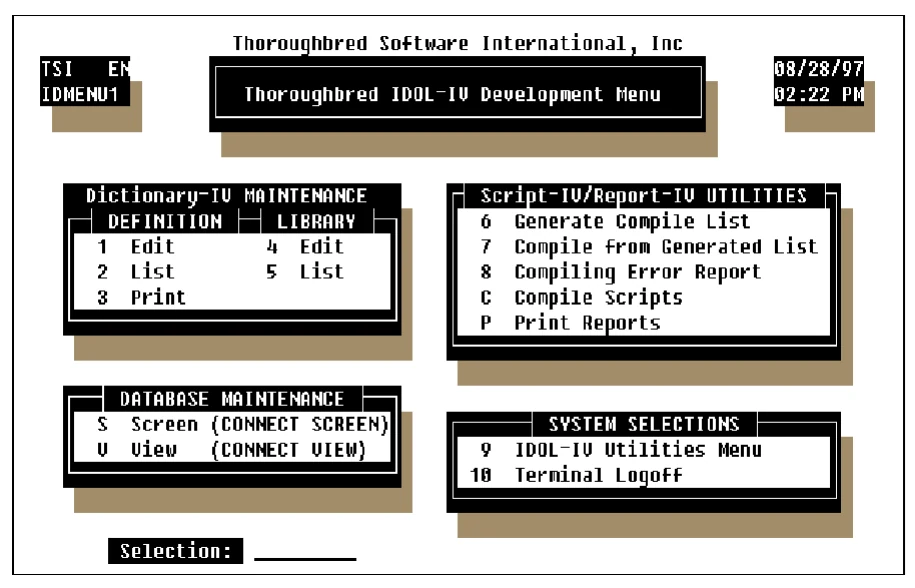
The following options are covered:
- Definition Maintenance
- Edit Definition List Definition Print Definition
- Library Maintenance
- Edit Library List Library
- Executing Reports
- Print Reports
Definition Maintenance
Section titled “Definition Maintenance”The following subsections describe how to maintain the record definition.
Maintenance Options
Section titled “Maintenance Options”Definition Maintenance can be selected from the Dictionary-IV Development Menu. The definition maintenance options are:
- Edit
- List
Edit allows you to add, change, delete, rename, and copy definitions. List provides a listing of definitions and information about the definitions. Print provides a hard copy of the definition.
Definition Names
Section titled “Definition Names”A report definition consists of a two-character library name and a report definition name.
Example:
UTCUSTUT designates the library name; CUST is the name of the report definition.
Definition names can be from three through eight characters long. The names must be at least three characters long because the first two characters specify the library name. Libraries organize definitions into convenient associations.
Valid characters are alphanumeric:
ABCDEFGHIJKLMNOPQRSTUVWXYZ
abcdefghijklmnopqrstuvwxyz
0123456789
Edit Definition
Section titled “Edit Definition”Custom report definitions are created and maintained using Dictionary Maintenance, also referred to as Definition Maintenance. The report definition is one of several types of definitions that are maintained through Dictionary-IV maintenance in the System Dictionary. Each definition type contains different information, but the method of maintaining the information is consistent for all definitions.
How to Execute
Section titled “How to Execute”Begin at the Dictionary-IV Development Menu and select 1-Edit Definition or press the F1 key from any Dictionary-IV menu. The system displays the following Dictionary-IV pop-up menu:
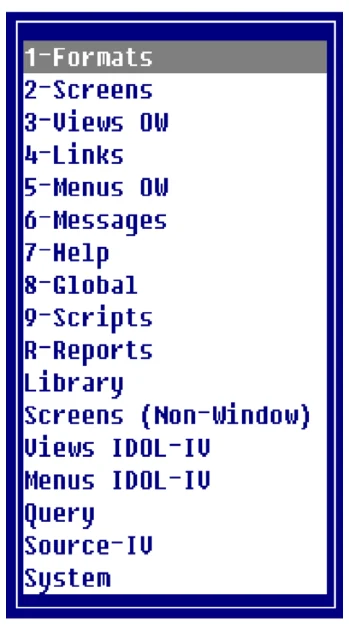
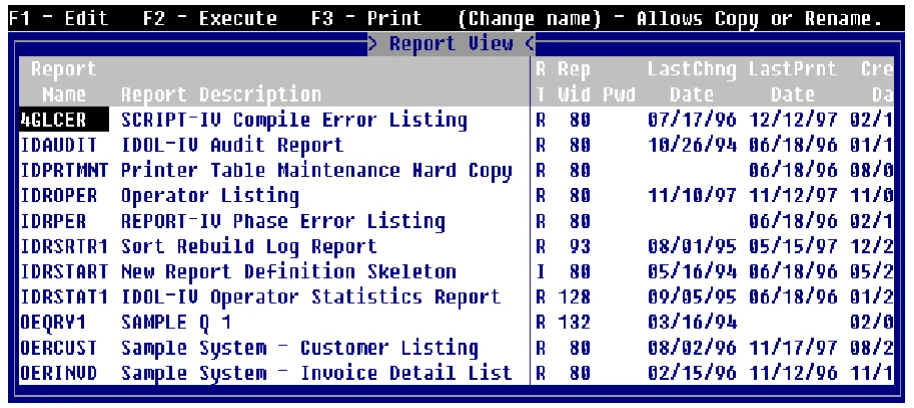
At the pop-up menu select R-Reports. The system displays a View similar to the following:
Retrieving the Next Definition
Section titled “Retrieving the Next Definition”From the View above pressing the Down Arrow key to highlight the next definition and pressing the Enter key selects that definition. When you select a definition from the View you can press F1 to edit, or press F2 to execute, or press F3 to print the report definition. You can also add, change, delete, rename, or copy a definition from the View. See the appropriate sections for more information.
Moving through the Definition View
Section titled “Moving through the Definition View”The Page Up and Page Down keys can be used to move quickly through the report definitions. These keys are active in all the View definitions. This feature is commonly used to get quickly to the Report Editor without stopping at each View field.
Keys Available in the Report View:
Section titled “Keys Available in the Report View:”You can scroll vertically among the names, and you can then select a highlighted definition by pressing the Enter key. The following special options are available at the list:
- Enter
- Selects the highlighted definition.
- Up Arrow
- Moves up one line.
- Down Arrow
- Moves down one line.
- PgUp
- Scrolls up one whole View.
- PgDn
- Scrolls down one whole View.
- Home
- Goes to: 1. Report name if on another column, 2. First name on screen,
- Last report name, 4. First name on screen, First report name.
- F10
- Goes to a specific definition. Prompts for a key value (name) to start the list.
- F4
- To exit.
Automatic Library Creation
Section titled “Automatic Library Creation”The add, change, rename, and copy modes of Definition Maintenance allow you to create a new library without using Library Maintenance. If you enter a definition name, and the library does not exist, the system prompts:
Do you want to create this library name?The system displays the following:
Creating library: 'xx'Library description: XXX:DD-MMM-YEAR HH:MM:SSLibrary owner: owner-nameSelect one of the following:
Y You may type the Library description and press Enter. The system creates the Library.
N Returns to the report name field without creating the library name.
Maintenance Options
Section titled “Maintenance Options”Standard maintenance options for report definitions are: Add, Change, Delete, Rename, and Copy. See the following sections for details on each of the maintenance options.
To add a definition name press Line Insert from the Report View. Enter a definition name from three through eight characters long. If you enter a name and the library does not exist, you will be allowed to create the library automatically.
If you enter a new name, you are adding a new definition. If you enter an existing name, the system will display the following message:
A record already exists with the key used to define the record beingadded to the file. Add request will be denied.Change
Section titled “Change”To change a report definition from the Report View select the definition and highlight the field to be changed, type over the information displayed. If you make changes to the Report Name the system displays a window showing the report name and the name the report is being changed to. The system then displays a window with the option to Cancel, Copy, or Rename.
To make changes to the report definition press F1 – Edit, make the changes, and press F4 to save the definition or changes to the definition. The following prompt is displayed:
Save report modifications?Select one of the following:
Y saves the definition.
N does not save the definition.
Delete
Section titled “Delete”To delete a report name from the Report View, highlight the report name and press Line Delete. The following prompt is displayed:
Delete Record?Select one of the following:
Y deletes the definition.
N keeps the definition.
Rename
Section titled “Rename”To rename a definition from the Report View, highlight the definition name and type the new name over the existing name. The system will display a window showing the definition name and the name the definition is being renamed to. The system also displays a pop-up menu with the option to Cancel, Copy or Rename. Select Rename to rename the definition.
When you rename the definition, it does not have to remain in the same library. If you rename it to a library that does not exist, you can create the library automatically.
To copy a definition, select the report definition name from the Report View and type the name to copy to over the text. The system will display a window showing the definition name and the name the definition is being copied to. The system also displays a pop-up menu with the option to Cancel, Copy, or Rename. Selecting Copy will copy the definition with the new name and the original definition will still exist.
When you copy the definition, it does not have to remain in the same library. If you copy it to a library that does not exist, you can create the library automatically.
List Definition
Section titled “List Definition”This function is used to list definitions.
From the Dictionary-IV Development Menu, select option 2, List Definition.
Dictionary-IV Development Menu
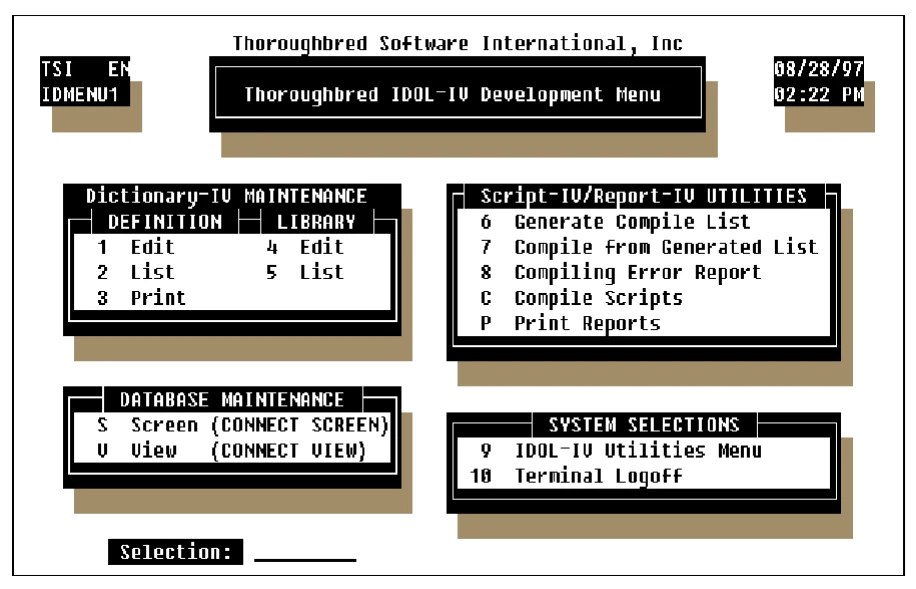
The system prompts:
Do you want a printed copy?Select one of the following:
- Y You
- are prompted to select the printer if there is more than one configured and a printed copy will be produced.
- N
- A terminal display is produced.
If you select a printed output, the system prompts:
Select printer (xx xx): xxSelect the printer; xx represents a defined printer name for your system. Press F1 to display a complete list of available printers.
To List Passwords, Enter the System Password:If security is active, you must enter the system password to obtain a listing that includes definition passwords. The Definition Listing Screen is displayed.
A selector bar enables you to select the category of definitions to list. To list only report definitions, use the Right Arrow key to move to Rpt for report definition or press the R key.
The system prompts:
Library:Enter the library name for which you want definitions listed.
List all Definitions?Select one of the following:
Y Lists all definitions in the library for the selected definition type.
N Enables you to specify a range of definitions to list.
from definition: (RETURN for first)to definition: (RETURN for same or last)Enter the range of definition names; do not enter the library of the definition. When you select a range of definitions, press the Enter key twice to select the first and last definition.
using name mask: (RETURN for none)A name mask allows you to select definitions without specifying individual names. If you do not wish to use a mask, skip this prompt by pressing the Enter key.
A mask sets up a matching test. If a definition name matches the mask, then it is selected. If no match is made, it is skipped. A mask contains match and passing characters. The characters in a report name must match all of the match characters (same character and position) for it to be selected. The pass character (?) is used to indicate that no match in this position is needed.
| Mask | Action | Definition Names |
|---|---|---|
| A? | selects | AB, AC, A1 |
| skips | aB, cA, 11 |
Is the displayed information correct?Select one of the following:
Y Starts the listing.
N Enables you to change the information.
The Definition Listing includes library information, the definition type, definition name, description, definition creation date, and last change date.
Print Definition
Section titled “Print Definition”This function is used to print definition reports. Definition reports contain all the specifications for the definition. These reports are used primarily in design of the definitions and as an aid for Definition Maintenance.
From the Dictionary-IV Development Menu, select option 3, Print Definition.
Select printer (xx xx): xxSelect the printer; xx represents a defined printer name for your system. Press F1 to display a complete list of available printers. The select printer defaults to the default printer setup in Operator Code Record. If none is specified, it defaults to the first printer in the list.
The Definition Report screen is displayed.
A selector bar enables you to select the type of definitions to print. To list only report definitions, use the Right Arrow key to scroll to Rpt for report definition or press the R key.
Library:Enter the library name for which you want definitions printed.
Print everything?Select one of the following:
Y Prints all definitions in the library for the selected definition type.
N Enables you to specify a range of definitions to print.
from definition: (RETURN for first)to definition: (RETURN for same or last)Enter the range of report names. Do not enter the library of the definition. When selecting a range of definitions, press the Enter key twice to select the first and last definition.
using name mask: (RETURN for none)A name mask allows you to select definitions without specifying individual name. If you do not wish to use a mask, skip this prompt by pressing the Enter key.
A mask sets up a matching test. If a definition name matches the mask, then it is selected. If no match is made, it is skipped. A mask contains match and passing characters. The characters in a report name must match all of the match characters (same character and position) for it to be selected. The pass character (?) is used to indicate that no match in this position is needed.
| Mask | Action | Definition Names |
|---|---|---|
| A? | selects | AB, AC, A1 |
| skips | aB, cA, 11 |
Is the displayed information correct?Select one of the following:
Y Starts the printing.
N Enables you to change the information.
The definition report includes definition name, description, definition creation date, last change date, and detailed information on the report definition.
To Interrupt Printing
Section titled “To Interrupt Printing”If at any time you want to interrupt the printing, press the key sequence for your terminal that represents the Escape key; you will be asked if you want to interrupt the printing and must then verify the interrupt.
Printing Reports
Section titled “Printing Reports”Your report can be printed to the terminal screen or output to a printer. Reports can be printed individually or in batches.
To Pint a Single Report
Section titled “To Pint a Single Report”To print a report, you must be at the Selection prompt at any Dictionary-IV menu. Type .report-name.
Note: The . (period) must precede the name of the report that you are printing.
The system prompts:
Do you want a printed copy?Select one of the following:
Y You are prompted to select the printer and a printed copy will be produced.
N A terminal display is produced.
If you select a printed output, the system prompts:
Select printer (xx xx): xxSelect the printer; xx represents a defined printer name for your system. Press F1 to display a complete list of available printers.
Example:
LPNote: You can also print a single report from the Report View by pressing F3 – Print, or from the batch reports section below by selecting the same report name in the from report field as the to report field.
To Print a Batch of Reports
Section titled “To Print a Batch of Reports”From the Dictionary-IV Development Menu, select option P, Print Reports.
The system prompts:
Do you want a printed copy?Select one of the following:
Y You are prompted to select the printer and a printed copy will be produced.
N A terminal display is produced.
If you select a printed output, the system prompts:
Select printer (xx xx): xxSelect the printer; xx represents a defined printer name for your system. Press F1 to display a complete list of available printers.
Example:
LPThe Print Reports screen is displayed:
Library:Enter the library name for which you want to print reports.
Select everything?Y Prints all reports from the selected library.
N Enables you to specify a range of reports to print.
from name: (RETURN for first)to name: (RETURN for same or last)Enter the range of report names. Do not enter the library name as part of the report definition name. When selecting a range of definitions, press the Enter key twice to select the first and last definition.
using name mask: (RETURN for none)A name mask allows you to select definitions without specifying individual names. If you do not wish to use a mask, press the Enter key.
A mask sets up a matching test. If a definition name matches the mask, then it is selected. If no match is made, it is skipped. A mask contains match and passing characters. The characters in a format name must match all of the match characters (same character and position) for it to be selected. The pass character (?) is used to indicate that no match in this position is needed.
| Mask | Action | Definition Names |
|---|---|---|
| A? | selects | AB, AC, A1 |
| skips | aB, cA, 11 |
Is the displayed information correct?Select one of the following:
Y Starts the printing.
N Enables you to change the information.
From the Report-IV Reference, version 8.9.1. Open this page in the PDF