

Components of Format View
The Format definition is composed of three parts: header information, Data Names, and Data Name attributes.
Format View Header Information
Section titled “Format View Header Information”This displays the format name, description, key length, record length, key field, text field flag, field separators, last change date, and creation date.
Format Name
From 3 to 8 alphanumeric characters for the name of this format. This field is mandatory.
Characters one and two are the Library name. Characters three through eight are the format name. If the Library does not exist the system will allow you to create it here.
For more information, see Class definition in this document, which provides a file naming convention.
The following unique function keys are available from the Format Name Field:
- F1
- Allows you to edit the Format.
While the cursor is in the Field Number you may select from the following:
F2 Lookup Global.
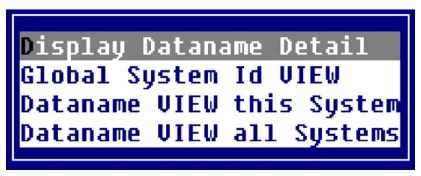
For more information, see Global.
F3 Move When you press F3 the system prompts:
Enter move command (xxtoyy or xx,yy):
Type the Field Number you want to “move from” then type the Field Number you want to “move to”. The system moves the Data Name and attributes in front of the “move to” Field Number. For example: if you type 1,5 and press Enter the system moves the Customer Code and all of its attributes to Field Number 4.
You will be prompted to Save modifications when you exit.
F5 Swap When you press F5 the system prompts:
Enter swap command (xxtoyy or xx,yy):
Type the Field Number you want to “swap” then type the Field Number you want to “swap with”. The system swaps the Data Name and attributes you type. For example: if you type 1,5 and press Enter the system moves the Customer Code and all of its attributes to Field Number 5 and State and all of its attributes to Field Number 1.
You will be prompted to Save format modifications when you exit.
F7 Multi-Language Data Descriptions Displays a view similar to the following:
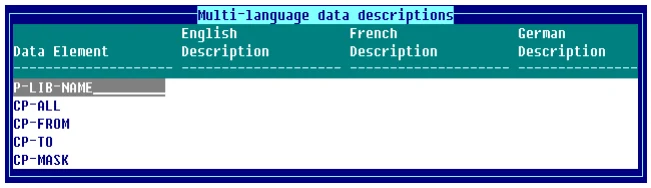
Here you may define the descriptions to be displayed for each Data Name in the Format. If you are operating in a Multi-Language environment, you may define the language descriptions for each Data Name. For more information, see Field Descriptions in this document. For more information on the Multi-Language environment see Multi-Language in the Dictionary-IV Administrator Guide.
F2 Displays the Format. From this window you can Press F7 and the system displays the following pop-up menu:
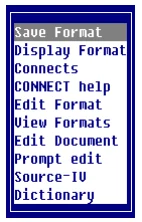
From here you can save the format, display the format, display Data Names that have CONNECT directives, display
CONNECT help, edit the format, display the Formats view, edit a text document, CONNECT to Source-IV, or
CONNECT to Dictionary-IV.
Format Description
Type up to 40 alphanumeric characters for the description of this format. This field is optional.
Key Length (Key Len)
No input is required. To change this field you should press F1 and edit the Format. Displays the length of the Key fields in the format.
Record Length (Rec Len)
No input is required. To change this field you should press F1 and edit the Format. Displays the length of the entire format (excluding the field separators).
Key Field (Key Fld)
No input is required. To change this field you should press F1 and edit the Format. Displays the number of primary key fields in the format.
Text Field Flag (TI)
No input is required. To change this field you should press F1 and edit the Format. Displays Y if there are text fields displayed in the format. Displays N if there are no text fields displayed in the format.
Field Separators (Fld Sep)
No input is required. To change this field you should press F1 and edit the Format. Displays the number of field separators in the format.
Last Change Date This field is automatically calculated. No input is required. Displays the date of the last change to the selected format.
Create Date This field is automatically calculated. No input is required. Displays the date of creation of the selected format.
Field Descriptions: Data Names
Section titled “Field Descriptions: Data Names”The Data Name list displays all Data Names in the format. Although only a limited number may be shown at a time, you may create up to 255 Data Names. To view the data names not appearing on the screen, press F10 (Goto Data Name) or use the Up Arrow, Down Arrow, Page Up, and Page Down keys.
The order in which these Data Names display is the order in which they display on the default screen and view. For more information, see Screens and Views in this document.
If you are using TS ORACLE DataServer you may create only 254 Data Names.
Field Number (Fld Num)
Displays the number of the Data Name. Each Data Name has a unique Field number.
Data Name From 1 to 20 alphanumeric characters for the name of this Data Name in the format. You must define at least one Data Name.
In a data file this Data Name represents a field in a record.
In a menu you must define one Data Name, which has the length equaling the largest selection code on the menu. For more information, see Menus in this document.
Add, change, or delete Data Names using normal View maintenance procedures. For more information, see CONNECT VIEW in the Dictionary-IV User Guide.
You may also press F8 and the system displays the Global Dictionary.
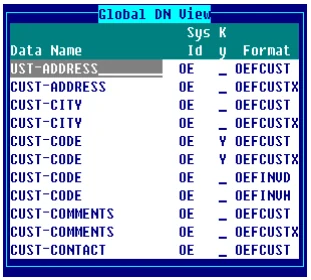
This is a view of all Data Names generated using the Global Systems Definitions. For more information, see Global Systems Definition in this document.
It lists all Data Names showing the System ID and the Format definitions where that Data Name is used. Select a Data Name. Press F1 or F2 to display the attributes for that Data Name. Press Enter to select the Data Name.
Field Descriptions: Data Descriptions
Section titled “Field Descriptions: Data Descriptions”Press F7 in the Field Number field to access Multi-Language descriptions.
Multi-Language Data Descriptions
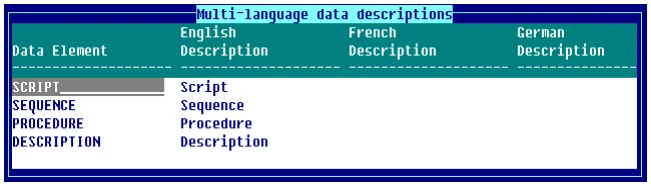
You can enter a description for each Data Name or press F11 to generate default Data Descriptions based on the Data Name. When displaying the Data Name view, the descriptions display in the current language. These descriptions can be up to 20 characters and can contain special characters (such as spaces) not supported in Data Names.
Note: an error window will report when you enter a duplicate data description.
Maintenance of the Data Descriptions is done using an OPENworkshop View. This allows you to delete and arrange the columns in a convenient format. The view size and location may be changed. Rows cannot be deleted or added.
For more information, see Multi-Language in the Dictionary-IV Administrator Guide and CONNECT VIEW in the Dictionary-IV User Guide.
Field Descriptions: Data Name Attributes
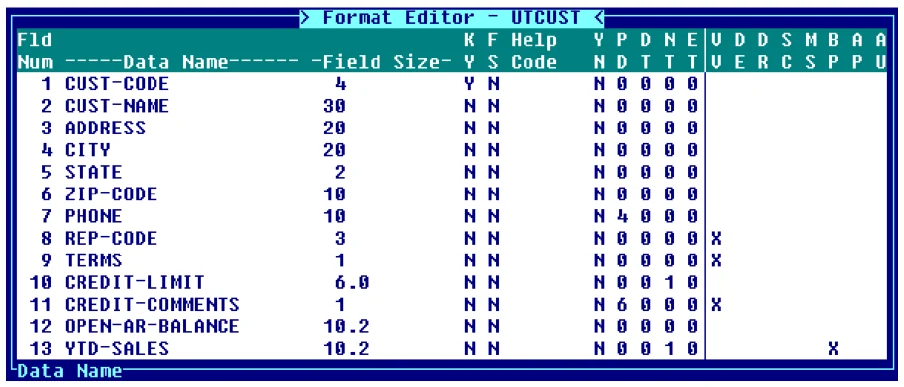
Section titled “Field Descriptions: Data Name Attributes”This information defines the attributes for each Data Name. Press F1 in the Format Name field to edit the format. The system displays the following:
Format Editor
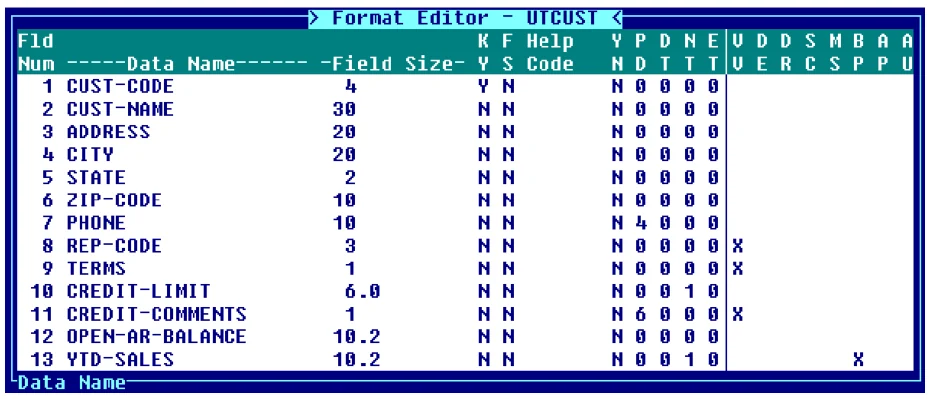
Note: When you update your format definitions, a window displays containing a list of screen definition names and formulas that have generated a syntax error.
This window only appears if there are problems compiling formulas. This is done whenever a format is changed in such a way that it would affect the screen (definition name length, deleting a definition name, etc.). This window will show you which formulas had problems. If it doesn’t appear, the formulas were recompiled successfully.
Field Size Specifies the maximum length of this Data Name, whether you may enter numeric or alphanumeric data, and whether or not there are multiple occurrences of this field.
By specifying the occurrences, you can define a table of Data Names that share a common name and definition. The length of a numeric Data Name depends upon the numeric type defined for this Data Name. For more information about numeric types see the Numeric Type field definitions later in this section.
This field is mandatory.
Field Size - Alphanumeric
n- n
- is an integer from 1 to 255. This determines the length of an alphanumeric field.
Example:
35
Defines a string field of 35 characters.
Field Size - Alphanumeric Repeating Fields (Multiple Occurrences)
n1*n2,FS- n1
- is the length of the alphanumeric Data Name.
- n2
- is the number of occurrences from 1 to 32767.
- FS
- (optional) places a field separator between each occurrence. Field Separator (FS).
Example:
6*5,FS This entry specifies a six-character alphanumeric input repeated 5 times. A field separator is placed between each occurrence.
Field Size - Numeric (General)
Guidelines to Calculate Numeric Data Name Length
Field Size - Numeric: Fixed Point
n1.n2For numeric types 0 and 2:
- n1
- is the total number of characters in the field and may be from 2 to 16 characters. Include one for the sign (+/-) and one for the decimal point.
- n2
- is the number of positions in the decimal portion of the Data Name. Precision zero must be specified.
For numeric type 1:
- n1
- is the total number of characters in the field and may be from 1 to 15 characters. Include one for the decimal point.
- n2
- is the number of positions in the decimal portion of the Data Name. Precision zero must be specified.
Example:
8.2
Defines a numeric field. The size and format of this field depends on the numeric type.
Field Size - Numeric: Binary Data
n1.n2For numeric types 3, 4, and 5:
- n1
- is the total number of characters in the field and may be from 1 to 8.
- n2
- is the number of positions in the decimal portion of the Data Name. Precision zero must be specified.
Use the following as a general guide to determine the length for these numeric types:
Disp Size = (Storage Size *2) + 1 + S + D- S
- is the sign.
- D
- is the decimal.
For numeric types 3 and 5, S=1 for the sign. When precision > 0, D= 1 for the decimal point.
When displaying a number with more than 14 digits, the display will be in exponential form.
For more information on binary storage, see the BIN function in the Thoroughbred Basic Reference Manual.
Field Size - Numeric: Packed Data
n1.n2For numeric type 6:
- n1
- is the total number of characters in the field and may be from 1 to 6.
- n2
- is the length of the decimal portion of the element. Precision zero must be specified.
Use the following as a general guide to determine the length for this numeric type:
Disp Size = (Storage Size * 2) - 1 + S + D- S
- is the sign.
- D
- is the decimal.
When precision > 0, D = 1 for the decimal point.
For more information on PACKed storage, see the PCK function in the Thoroughbred Basic Reference Manual.
Field Size - Numeric: Informix Data
n1.n2For numeric type 7:
- n1
- is the total number of characters in the field and may be from 2 to 9.
- n2
- is the length of the decimal portion of the Data Name. Precision zero must be specified.
Use the following to determine lengths:
- S
- is the sign.
- D
- is the decimal.
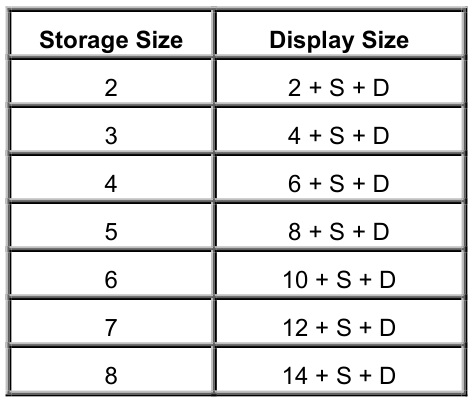
When precision > 0, D = 1 for the decimal point.
Field Size - Numeric: IEEE Data
Storage of IEEE numerics are hardware architecture dependent. They may or may not be transportable across different platforms. For example, INTEL and Motorola are mirror images, therefore IEEE data fields must be converted when moving files from one platform to the other.
n1.n2For numeric type 8:
- n1
- is 4.
- n2
- is the length of the decimal portion of the element. Precision zero must be specified.
For numeric type 9:
- n1
- is 8.
- n2
- is the length of the decimal portion of the element. Precision zero must be specified.
Disp Size = Storage Size + S + D- S
- is the sign.
- D
- is the decimal.
S = 1 for the sign. When precision > 0, D = 1 for the decimal point.
Field Size - Numeric: BCD Data
n1.n2For numeric types A and B:
- n1
- is the total number of characters in the field and may be from 1 to 8.
- n2
- is the length of the decimal portion of the element. Precision zero must be specified.
Numeric Type A:
Disp Size = (Storage Size * 2) - 1 + S + DNumeric Type B:
Disp Size = (Storage Size * 2) - 1 + D- S
- is the sign.
- D
- is the decimal.
S = 1 for the sign. When precision > 0, D = 1 for the decimal point.
For numeric type C:
- n1
- is the total number of characters in the field and may be from 1 to 7.
- n2
- is the length of the decimal portion of the element. Precision zero must be specified.
Numeric Type C:
Disp Size = (Storage Size * 2) - 1 + D- S
- is the sign.
- D
- is the decimal.
S = 1 for the sign. When precision > 0, D = 1 for the decimal point.
Field Size - Numeric: ASCII Data
n1.n2For numeric type D:
- n1
- is the total number of characters in the field and may be from 1 to 14.
- n2
- is the length of the decimal portion of the element. Precision zero must be specified.
For numeric types E and F:
- n1
- is the total number of characters in the field and may be from 2 to 15. Include 1 for the sign (+/-).
- n2
- is the length of the decimal portion of the element. Precision zero must be specified.
Field Size - Numeric Repeating Field (Multiple Occurrence)
n1[.n2]*n3,FS- n1.n2
- is the length of the numeric Data Name.
- n3
- is the number of occurrences from 1 to 32767.
- FS
- (optional) places a field separator between each occurrence. For more information, see Field Separator (FS).
Example:
8.2*5,FS This entry specifies a numeric input repeated 5 times. A field separator is placed between each occurrence.
Key (KY)
Specifies whether or not this Data Name is a primary key field.
Select one of the following:
- Y
- This Data Name is a key or part of the key.
- N
- This Data Name is not a key field.
- The default is
- N.
When the File Type in the corresponding Link Class is set to I (Dictionary-IV file type), the Key Indicator is used to determine the file type according to the following chart:
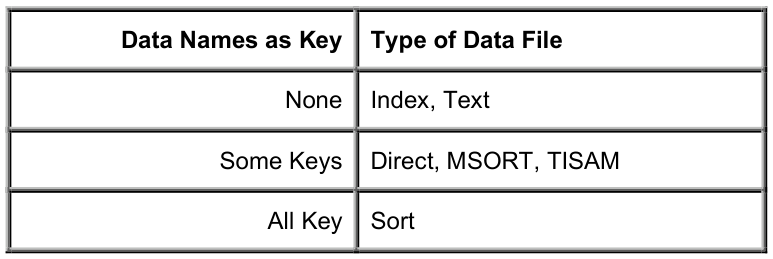
Sorts (cross-indexes or secondary keys) are created from link maintenance.
The Key Indicator can be set for any Data Name in the format. If the key fields are not contiguous, create a SORT0 definition in the link to describe the primary key.
The script directive below collects input from all fields, which have the Key Indicator set to Y. The system prompts:
INPUT SCREEN screen-name KEYField Separator (FS)
Specifies a field separator to be placed at the end of this Data Name. This treats the next Data Name internally as a separate field.
Select one of the following:
- Y
- Add a field separator after the Data Name.
- N
- Do not add a field separator after the Data Name.
A field separator is a special character ($8A$) that follows the Data Name in the record.
One character is added to the file’s record size for each field separator. You can control which character is used as a field separator. For more information see PRM and SEP in the Thoroughbred Basic Reference Manual.
This is important when developing a format for an existing data file, but optional when creating a new format.
The default is N.
You cannot use field separators with any binary storage. For more information, see PRM and SEP in the Thoroughbred Basic Reference Manual. For example, SQL dates are stored in binary form. If you must use field separators, then the date fields cannot be SQL date types.
Help Code From 1 to 6 alphanumeric characters for the name of the module to be displayed for this Data Name. You do not need to include the library name. The system automatically places this Help definition in the library used by this Format. This field is optional.
This module is the Help definition that displays when you initiate help (press F6) at this Data Name during database maintenance. You may enter an existing help module or create a new one.
Press Enter to continue to the next field or press F1 to create help text.
For more information, see Help in this document.
After making your selection, you may enter your help text, then press F4. The system prompts:
Save Text?
Select one of the following:
- Y
- Saves the changes and returns to the current definition.
- N
- Allows you to make corrections.
- S
- Saves text and returns to the help text editor.
If the operator is defined as a developer, help text may be created here or from database maintenance. When the help is displayed press F1 from the help window to perform the edit. For more information, see Set Developer/User in the Dictionary-IV Administrator Guide.
Yes/No (Y/N)
Creates a Data Name that accepts yes or no input.
Select one of the following:
- Y
- Accepts only the input Y, y, N, n.
- N
- This is not a yes/no field and input is not limited to Y, y, N, n.
- blank
- This is used if the input type is optional.
The Yes/No indicator defines the valid entry to be a Y (yes) or N (no) response. Y automatically sets the Length field to 1.
The default is N.
Pad (PD)
Defines the leading and trailing characters to be used in variable length fields. It also defines the format of telephone numbers, social security numbers, and text fields. Padding is independent of whether a field is numeric or alphanumeric.
The padding can be either spaces or zeros placed before or after the input.
Select one of the following:
- 0
- Left justifies data with trailing spaces.
- 1
- Right justifies data with leading spaces.
- 2
- Left justifies data with trailing zeros.
- 3
- Right justifies data with leading zeros.
- 4
- Telephone number format. Automatically sets the Length field to 10 and makes this a fixed length field. Provides the following format: 000 000-0000.
- 5
- Social security number format. Automatically sets the Length field to 9 and makes this a fixed length field. Provides the following format: 000-00-0000.
- 6
- Text field. Automatically sets the Length field to 1.
- The default is
- 0.
Date (DT)
The date type defines the format of a date; where DD = day, MM = month, YY = year, and CC = century. Select one of the following:
0 Not a date.
1 MMDDYY Automatically sets the Length field to 6 and makes this a fixed length
field.
2 YYMMDD Continues the counting pattern using alpha characters. A0 follows 99 and B0 follows A9. This date type requires a PRM BASE-YEAR. For more information on BASE-YEAR, refer to the Thoroughbred Basic Customization and Tuning Guide Volume II. The BASE-YEAR= parameter is used to specify the base year for 00. Typically, this value is either 1900 (default) or 1800. The following table shows the storage of the year for both 1800 and 1900 base.
3 DDMMYY Automatically sets the Length field to 6 and makes this a fixed length
field.
4 YYDDD (Julian Calendar) Automatically sets the Length field to 5 and makes this a
fixed length field.
5 SQL Automatically sets the Length field to 6 and makes this a fixed length field. For more information, see Entry Type. SQL dates cannot have a field separator. For more information, see Field Separator (FS).
6 MMDDCCYY Automatically sets the Length field to 6 and makes this a fixed length
field.
7 CHR(YY+1) allows the storage of years up to 99. See the storage formula below:
from: CHR (YY+1) +CHR(MM+1) +CHR (DD+1)to: CHR (MOD(YYYY,1900)+1)+CHR(MM+1)+CHR(DD+1)The new date type 7 formula supports both 2 and 4-character years. But as a compressed date, it will eventually generate a binary value that may be misinterpreted. Using this technique, the year 2037 is stored as a field separator ($8A$)MMDDYY Automatically sets the Length field to 3 and makes this a fixed length field.
8 MMDDYYYY Date type 8 stores Thoroughbred Basic SQL data as a number in your data files This eliminates the problems caused by binary storage found with Date Type 5.
Date type 5 is stored as a 6-byte binary field, but the definition length is 6 and the numeric type is
- This stores date and time. To store just the date, set the length to 4 and the numeric type to 0. When date type 5 is stored in 4 bytes, the result is an Informix compatible SQL date.
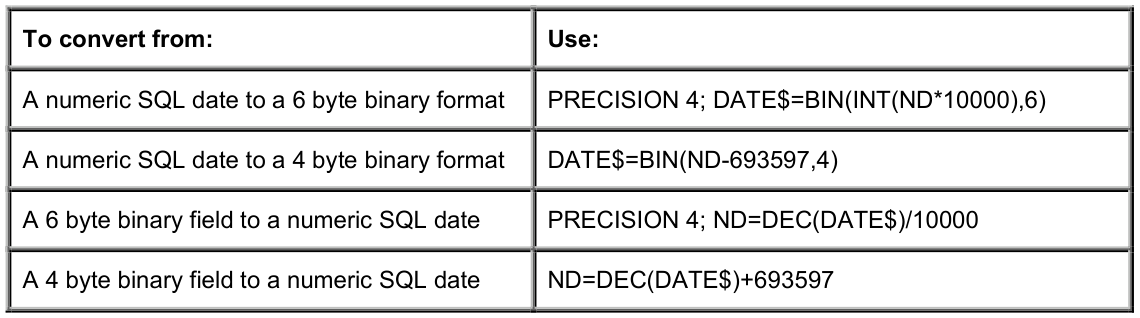
Precision 4 produces an SQL date with time to within + or - 9 seconds. On average the time will be accurate to within + or - 5 seconds. If a more accurate time stamp is required, the TIM function in Thoroughbred Basic should be used, or a combination of an SQL date and a sequence number.
Date type 6 is stored as CHR(CC) + CHR(YY) + MMDD.
Date type 7 is stored as CHR(YY+1) + CHR(MM+1) + CHR(DD+1). For more information on CHR, see the Thoroughbred Basic Reference Manual.
Date type 8 is MMDDYYYY and stored as a string and supports the following lengths:
5.4, 6.5, 8.7, 9.8, 12.5, 13.6, 14.7 and 15.8.
Note: Date Types 2 and 7, while providing a quick fix, still rely on data compression and/or logical interpretation of data. Thoroughbred Basic has long supported a date type suitable for YEAR 2000 development. The SQL date is an industry accepted Y2K solution providing automatic functions for sorting, compares, arithmetic and storage. The Thoroughbred Basic SQL date is now available to Dictionary-IV developers in a new date type. The new date type stores the Thoroughbred Basic SQL date as a decimal number. The format storage length depends on whether you require time.
The input and display for the updated and new date types are determined by Global variables. The input and display can be a combination of 6 and 8-character formats. If an application’s dates are not ambiguous in regard to century, displaying 6 may be sufficient. The Global variables also provide for specification of a Date Method. The Date Method provides the opportunity to modify the users input prior to date validation. The most common use of the Date Method is to determine and add a Century value to a 6-character date. For example; the user enters 082859 and the input mask is set to MMDDYYYY. Normally, a date validation routine would fail this input. The mask is 8-characters but the user only entered 6. With Date Methods, your application can now supply the missing information prior to validation by adding the proper century value. The Date Method has access to all kinds of information to assist in determining the Century including the dates, data-names, format and link names. Thoroughbred provides a sample Date Method that replicates the Thoroughbred Basic sliding 50-year rule to determine the century. The method can be maintained as either a Thoroughbred Basic program or an OPENworkshop script method. This method is provided to help assist developers in providing a solid Y2K solution.
If you previously selected a padding type for a telephone number, social security number, or text field, the system automatically enters the default value of 0 in these fields.
During file maintenance the system automatically tests for input of valid date values. If the Data Name is mandatory and you press Enter, the system displays the current date in the selected format.
Numeric Type (NT)
Specifies the storage method and the types of numbers that are accepted as valid input to a numeric Data Name.
Select one of the following:
- 0
- Fixed point positive/negative
- 1
- Fixed point positive
- 2
- Fixed point negative
- 3
- Binary storage positive/negative
- 4
- Binary storage positive
- 5
- Binary storage negative
- 6
- Packed storage positive/negative
- 7
- Informix Decimal compatible storage
- 8
- IEEE single precision compatible storage
- 9
- IEEE double precision compatible storage
- A
- Binary Coded Decimal signed compatible storage
- B
- Binary Coded Decimal unsigned compatible storage
- C
- Binary Coded Decimal no sign compatible storage
- D
- ASCII sign masked storage
- E
- ASCII leading byte sign storage
- F
- ASCII trailing byte sign storage
The floating-point types include decimal, integer, and exponential values (more than 14 positions).
Numeric types 3, 4, 5, 6, A, B, C, D, E, and F imply a decimal. The decimal value is not stored but calculated for input or output based on the precision defined in the Data Name length field.
- For storage:
- number = number * 10 ^ precision 12.34 = 1234
- For display:
- number = number / 10 ^ precision 1234 = 12.34
- The default is
- 0.
Entry Type (ET)
Specifies whether the input of the Data Name is optional or mandatory and of variable or fixed length.
Select one of the following:
- 0
- Optional entry, variable length. The number of characters you may enter for this Data Name range from 0 to the number of characters specified in the Length field. The system pads with spaces or zeros. For more information, see Pad (PD).
- 1
- Optional entry, fixed length. You do not have to make any entry in this field, if you do, it must be the exact number of characters specified in the Length field. The system will not pad with spaces or zeros.
- 2
- Required entry, variable length. The number of characters you may enter for this Data Name range from 1 to the number of characters specified in the Length field. The system pads with spaces or zeros. For more information, see Pad (PD).
- 3
- Required entry, fixed length. You must make an entry in this field and it must be the exact number of characters specified in the Length field. The system will not pad with spaces or zeros.
- The default is
- 0.
Valid Values (VV)
Defines valid values, provides text field specifications, and SQL input and display masks. Valid entries may be listed individually, by range, by file name, or by view name.
Make sure the valid values you provide have the correct length defined for this Data Name.
Press Enter to define Valid Values.
Valid Values: List Specifies a list of valid values. The maximum list length is 255 characters. Entries must be separated by commas.
0,val-1[,val-2...] [:trans-val-1,trans-val-2...]- 0
- specifies a valid entry list.
- val-1
- is a valid entry for this Data Name.
- val-2
- (optional) is another valid entry for this Data Name.
- trans-val-1
- (optional) is a value into which val-1 is converted. Val/trans-val sets must match
in number values and total length.
- trans-val-2
- (optional) is a translation value for val-2.
Examples:
0,HRD,BB ,SFT,MFR,Z , STK The valid values are HRD, BB, SFT, MFR, Z, STK for a Data Name with a length of 3 and padding type 0 (left justify and fill with spaces).
0,A,B,C:1,2,3
The valid values are A (which returns a value of 1), B (which returns a value of 2), and C (which returns a value of 3). The translation value is stored in the data file.
Valid Values: Range Specifies a range of valid values. This test does an entire string comparison. Alphanumeric values will fall within a numeric range check on alphanumeric Data Name.
The maximum list length is 255 characters. Entries must be separated by commas; ranges by semicolons.
1,lo-val-1,hi-val-1[;lo-val-2, hi-val-2]...- 1
- specifies a valid entry range.
- lo-val-1
- is the lowest value in the first range.
- hi-val-1
- is the highest value in the first range.
- lo-val-2
- (optional) is the lowest value in an additional range.
- hi-val-2
- (optional) is the highest value in an additional range.
Examples:
1,5500,6599;7500,8599
The valid values are 5500 through 6599 and 7500 through 8599.
1, A12, A56;B1 ,B9
The valid values are A12 through A56 and B1 through B9 for a Data Name with a length of 3 and padding type 0 (left justify and fill with spaces).
Valid Values: File Lookup Specifies a lookup file containing valid values, which are primary keys of the data file. If a matching key is found, the operator input is considered valid.
An optional prefix can be placed on the entered value if more than one list of valid values is in the file. When the input is validated, the data associated with the key in the lookup file can be transferred into a variable and used for special processing. You must write a special program to use this ability.
2,lookup-link,read-opt[,"prefix"]- 2
- specifies a file lookup of valid entries.
- lookup-link
- is the name of the Link that specifies a physical file containing the lookup values. If the file is not found an error message is displayed.
- read-opt
- is one of the following: 0 performs the lookup but no data read into S$ for processing. 1 if valid, read data into variable S$ for processing. Data is obtained using EXTRACT RECORD. The record will be locked.
- "prefix"
- (optional) is the prefix attached to the entry before lookup. It must be placed in quotation marks.
If the format will be used in a script, use read-option 0.
Example:
2,PLLOOK1B,0,“A”
The valid values are in the file named PLLOOK1B. If the entry is valid, no data will be read into S$. A prefix of A will be attached to the entered values before lookup.
Valid Values: Lookup View Specifies a view containing valid values, which are the primary keys of the data file. If a valid value is not found, the system displays the view you specify. You may scroll the listing and press Enter to select a valid value from this view.
LOOKUP VIEW view-name[ERMFIRST|SPACEOK|PVIEW]- LOOKUP VIEW
- is the keyword.
- view-name
- is the view name to lookup.
- ERMFIRST
- indicates that an error message will be printed prior to the view. Press F4 to return to the operator input. Any other response will display the LOOKUP VIEW.
- SPACEOK
- indicates that blank entries will not display the LOOKUP VIEW.
- PVIEW
- indicates that the view will function as a PRINT VIEW. No data changes are allowed. Press Enter to select the record and press F4 to exit the view with no data returned.
Example:
LOOKUP VIEW UTVCUST The valid values are in the link used by the view, UTVCUST. If an entry is not valid, the system displays the view UTVCUST.
Valid Values: Text Field Window Text fields are used for storing unlimited amounts of text that may vary in size from one record to another. When you set up a text field window, the system automatically sets the Length field to 1 and Pad field to 6.
The text is entered into a window and can be edited using a full screen Text Editor. For more information, see Text Editor in the Dictionary-IV User Guide.
You can have more than one text field in a format.
The data file must be an Dictionary-IV Direct, MSORT, or TISAM file. This adds 4 to the key length of a direct file only.
3,id,chars,lines,col,row,border[,heading]- 3
- specifies a text field (window).
- id
- is a unique single character id from A to Z. When there are multiple text fields in a format, use ascending characters (A, B, C, etc.).
- chars
- is the number of characters per line (width). This is the text size inside the window and excludes the border. Valid values are from 2 to 73.
- lines
- is the number of lines in the window and excludes the border. Valid values are from 1 to 22.
- col
- is the first column position. This is the top left column of text and excludes the border. You must take into account the text width, border, and screen size. Valid values are from 3 to 75.
- row
- is the first row position. This is the top left row of text and excludes the border. You must take into account the number of lines displayed, border, and screen size. Valid values are from 1 to 22.
- border
- is one of the following: C Character (- - -) border. G Graphic border. N No border. R Reverse video border.
heading (optional) is the title of the window that displays at the top of the window.
Example:
3,A,60,8,17,11,G,Prospect Phone Log When you enter this field a window displays that allows 60 characters to be entered. Eight rows display at a time. The window begins on column 17, row 11. The border is graphic. The window title is Prospect Phone Log.
Valid Values: SQL Date Masks SQL date masks can be used in combination with a 6 byte date type 5 to provide the ability to enter and display both the date and time. Date Type (DT).
The SQL date mask should not be used to maintain time that must be accurate within the second. This date type is only accurate on average within + or - 5 seconds. If you require a more accurate time stamp use the TIM function in Thoroughbred Basic.
IM = "sql-input-mask" DM = "sql-disp-mask"- IM
- defines a SQL input date mask.
- sql-input-mask
- is any valid SQL date mask.
- DM
- defines a SQL display date mask.
- sql-disp-mask
- is any valid SQL date mask.
For more information on valid SQL date masks, see the DTN and NTD functions in the Thoroughbred Basic Reference Manual.
Example:
IM=“MMDDYY HHMI” DM=“MM/DD/YY HH:MI”
The input mask MMDDYY HHMI is used to collect the data from the operator. The display mask MM/DD/YY HH:MI is used to display the data. If you type 110697 and 0800 the following displays 11/06/97 8:00.
Default Entry (DE)
Type the default (or preset) value for this Data Name. The value you enter here depends on the Length field. This value displays when performing single and multiple record database maintenance.
You may accept this default by pressing Enter or overwrite it and press Enter. If however, the Security field defines this Data Name as a system generated field, you may not overwrite the value entered here.
For more information, see Security (SC).
Delete Record (DR)
The Delete Record value specifies the value to be used in testing whether or not a record can be deleted in the delete mode during database maintenance. The value in the Data Name is compared to the delete value and if the relational condition is true, the record can be deleted.
When two or more Data Names specify delete values, the system treats them as a logical AND. All conditions listed in the Data Names must be true.
To prevent any record in the file from being deleted enter = “ “ in this field.
rel-oper del-val [log-oper rel-oper del-val...]- rel-operator
- is one of the relational operators (<=,>=,<>, ><)
- del-val
- is the delete value. The delete value must conform to the Data Name definition, including type and padding. An error occurs if an alphanumeric delete value is specified for a numeric Data Name. An error also occurs if it contains non-numeric characters (such as a comma).
- log-oper
- is the logical operator (AND/OR) used to specify more than one relational condition for a delete value.
Example:
=5000
A record can be deleted if the Data Name equals 5000.
<=0
A record can be deleted if the Data Name is less than or equal to 0.
=“TEMP”
A record can be deleted if the Data Name equals TEMP.
=350 OR =450
A record can be deleted if the Data Name equals 350 or 450.
>0 AND <100
A record can be deleted if the Data Name is greater than 0 and less than 100 (1 through 99).
Security (SC)
Restricts the use of the add and change modes and the display of data during database maintenance. This specifies a security code and optional password to protect data during maintenance by an operator.
Security code options 1 and 2 are not applicable to scripts.
sec-mode,disp-mode[,password]- sec-mode
- select one of the following: 0 No restrictions (can add and change). 1 Restricts changes (can add only). 2 Restricts add (can change only). 3 Restricts add and change (system generated field). 4 Restricts record access to the defined groups. For more information see Security Groups in the OPENworkshop Reference Manual.
- disp-mode
- select one of the following: 0 Displays input and output. 1 Displays input only. 2 Does not allow display of input or output.
- password
- (optional) is a 1 to 3-character password. This password overrides the security mode but not display mode. If you enter a password, it is required in database maintenance regardless of other security settings. An asterisk ( * ) may be used as the password. This indicates that the password is to be the first 3 characters of the current value of the Data Name.
When the value of the record level security field defined in the format, matches a record level restriction key, only the groups defined for the key are allowed to access the data record.
Examples:
1, 1
Specifies an add only field in which the value is not displayed on the screen when called up.
0, 2
Specifies a field in which the data can be added or changed, but it is not displayed on the screen when entered or called up.
0,0, QRX Specifies the password QRX must be entered to add or change data. There is no restriction on data display.
0,1,*
Specifies a field in which the data can be added or changed. The user must enter the first 3 characters of the current value of the Data Name before gaining access to the field. The field only displays after you enter the correct password.
4,2,A1
Specifies that record level security is active for this format. Record level security allows the access of data records to be restricted to specified group levels. For more information, see Security Groups in the OPENworkshop Reference Manual.
Message (MS)
Specifies the message to display during database maintenance, when the Data Name is accessed.
Dictionary-based messages Uses the Dictionary-IV message dictionary. For more information, see Messages in this document.
dictionary;type,num[,disp-mode[,clear[,(col,row)]]]- dictionary
- is the Dictionary-IV message dictionary name.
- type
- select one of the following message types: P prompt/constant. N non-input. n non-input (print without suffix and no Enter). x non-input (print without suffix and wait Enter).
- num
- is the number of the message (from 1 to 256) in the dictionary.
- disp-mode
- select one of the following display options: (blank) defaults to the Message Definition. B is background. F is foreground. R is reverse video foreground. r is reverse video background.
- clear
- select one of the following clear options: A clears the line before and after. B clears the line before. C clears the line after. D clears the message area after. E clears the screen before and after. F clears the screen before. G clears the screen after. X (or blank) does not clear.
- col
- is ignored by the system.
- row
- is ignored by the system.
The row of the message is controlled by the global format Data Name #IDSV.PROMPT-LINE-NMBR. Specified row and column positions in the messages are no longer honored. For more information, see the Thoroughbred Basic and Script-IV reference manuals.
Example:
OPM1;N,12,R, A When this Data Name is accessed non-input message number 12 from the OPM1 message dictionary displays. Regardless of the message dictionary definition, it displays in reverse video, and the message area is cleared before and after the message is displayed.
Format-based messages
Creates the message in this Format definition.
[@(col,row[,disp-mode])]msg- @
- specifies a format-based message.
- col
- is ignored by the system.
- row
- is ignored by the system.
- disp-mode
- (optional) select one of the following: (blank) defaults to the message dictionary definition. B is background. F is foreground. R is reverse video foreground. r is reverse video background. The default is R.
- msg
- is the message text. You can use from 1 to 132 characters for the message. The message may be displayed on two lines (depending on the length and location).
The row and column of the message is controlled by the global format Data Name #IDSV.PROMPT-MSG-NMBR. Specified row and column positions in the messages are no longer honored. For more information, see the Thoroughbred Basic and Script-IV reference manuals.
Example:
@(1,18,R)Do not enter zero!
This specifies the message Do not enter zero to be displayed in reverse video background at #IDSV.PROMPT-LINE-NMBR.
Help Prompt messages
Allows the specified help module to be displayed on the screen as a prompt during field entry.
When a help prompt is defined for a field, it is activated by pressing F6 on that field. The help window displays. It is left on the screen and the cursor returns to the data field. If F6 is pressed again, the prompt window is removed and the standard help request is processed.
When the field entry is complete, the help prompt window is removed.
If the specified help module does not exist and the operator is defined as a developer, a prompt displays allowing the operator to press F1 to create the help. Also, from the Format Editor pressing Enter on the message field allows you to edit the defined special prompt help.
F1 can be used to create a new help prompt when Help Edit Developer/User is set to Developer in Operator Information. For more information, see Set Developer/User in the Dictionary-IV Administrator Guide.
[HELP;help-name]- HELP
- is the keyword.
- help-name
- is the definition name of the help text to be displayed.
Example:
HELP; CUSTH When you press F6 at this field, help module CUSTH displays and the system returns for input. Press F6 again to display the normal help for the element.
View Prompt definition messages This option displays the specified prompt message as the cursor moves from column to column in a CONNECT VIEW. Other types of prompt messages can be specified in addition to the VP [msg]. They will be displayed when the entry mode is invoked on a data field from within a CONNECT VIEW.
When in screen entry with VP[msg] as the only prompt specified, it is the only prompt displayed.
When in screen entry with other types of prompt messages specified (in addition to a VP [msg]), only the other type prompt messages display.
VP[prompt msg]msg-dict;msg-type,msg-num- msg-dict
- is the Dictionary-IV message dictionary name.
- msg-type
- is the message type.
- msg-num
- is the message number on the message dictionary.
Example:
VP[Press F2 to execute report]IDMSGS;P, 10
In a CONNECT VIEW, the message Press F2 to execute report displays when the cursor enters this column. When the input mode is invoked for this field, the prompt message number 10 from the IDMSGS dictionary displays.
Pre-processing (BP)
Pre-processing allows you to specify a program or script to be executed before data is input to this Data Name.
The Script-IV INPUT SCREEN command ignores any type 0 or pre-processing defined in formats. Any pre-processing for a script must be defined in the script. For more information, see the Script-IV Language Reference.
exec-ind,program[,pass-val]- exec-ind
- is the Thoroughbred Basic execution indicator. Select one of the following: 0 to CALL the Thoroughbred Basic program, Type 4, or Script Type P. 1 to RUN the Thoroughbred Basic program. CONNECT to connect to a Class.
- program
- is the program or script name (1 to 8 characters in length). If a program cannot be found, the procedure is ignored.
- pass-val
- (optional) is the string value that is passed to the procedure program in the variable S8$. This value may be used in the program as a flag or code, to specify a subroutine within the program, for cases where the same program is used to accomplish more than one procedure.
To write a pre-processing program, you may create either a type P script, a type 4 script, or a Thoroughbred Basic program.
- A type P script is recommended. The information passed to the script is documented in the API services in the on-line help under 8INPUT.
- A type 4 script is compatible with older file maintenance pre-processing programs. The information passed to the script is documented in the on-line help under Script-IV Types.
- For a Thoroughbred Basic program, 3GL developers should refer to the help for type P scripts (above) when creating the ENTER statement.
Example:
0,SPCED1, A
The program SPCED1 is executed using CALL, and the value A is passed to the program.
Pre-processing-CONNECT
For more information, see the appropriate CONNECT topic in the Dictionary-IV User Guide.
The following CONNECTs can be invoked before or after field entry:
- CONNECT HELP displays help text.
- CONNECT MENU processes a window menu
- CONNECT QUERY prints a query.
- CONNECT REPORT prints a report.
- CONNECT SCREEN performs screen maintenance.
- CONNECT VIEW performs view maintenance.
CONNECT[(function-key)] Class Class-name [;CONNECT...]- CONNECT
- is the keyword.
- function-key
- (optional) is the function key to be used to invoke the pre-processing.
- Class
- is the type of CONNECT. Select one of the following: VIEW SCREEN MENU HELP REPORT QUERY
- Class-name
- is the name of the CONNECT Class.
Example:
CONNECT (1) VIEW UTSLS This specifies when this Data Name is accessed you may CONNECT to the view UTSLS by pressing F1.
Script-IV has its own set of CONNECT commands. For more information, see the Script-IV Language Reference.
Pre-Processing-CONNECT SCREEN/VIEW details
CONNECT VIEW view-name     USING expr RANGE FROM TO expr]     SORT [BY] sort-number;     [SELECT WHEN cond;]
CONNECT SCREEN screen-name [USING expr|RANGE FROM TO expr] [SORT [BY] sort-number;][AUTO-EXIT]- expr
- is any valid string or Data Name expression.
Pre-Processing-CONNECT REPORT/QUERY details
CONNECT REPORT report-name [,from report name [,to report name [,mask form name [,sort-number [,report output device [,report output type [,report output mode [,program to execute before printing line ]]]]]]]]CONNECT QUERY syntax options are the same as the REPORT options.
Examples:
CONNECT SCREEN UTCUST
Invokes the screen UTCUST and allows single-record maintenance.
CONNECT (3) MENU UTMENU
Invokes the menu UTMENU when F3 is pressed.
CONNECT REPORT UTXRAR01,,,,2, P8
Prints the report UTXRAR01. Uses SORT 2 from the link. The device is the printer P8.
Post-processing (AP)
Post-processing allows you to specify a program or script to be executed after data is input to this Data Name.
The Script-IV INPUT SCREEN command ignores any post-processing defined in formats. Any post-processing for a script must be defined in the script. For more information, see the Script-IV Language Reference.
exec-ind, program[,pass-val]- exec-ind
- is the Thoroughbred Basic execution indicator. Select one of following: 0 to CALL the Thoroughbred Basic program, Script Type 4, or Script Type P. 1 to RUN the Thoroughbred Basic program.
- program
- is the program or script name (1 to 8 characters in length). If a program cannot be loaded, the procedure is ignored.
- pass-val
- (optional) is the string value that is passed to the procedure program in the variable S8$. This value may be used in the program as a flag or code, to specify a subroutine within the program, for cases where the same program is used to accomplish more than one procedure.
To write a post-processing program, you may either create a type P script, a type 4 script, or a Thoroughbred Basic program.
- A type P script is recommended. The information passed to the script is documented in the API services in the on-line help under 8INPUT.
- A type 4 script is compatible with older file maintenance post-processing programs. The information passed to the script is documented in the on-line help under Script-IV Types.
- For a Thoroughbred Basic program, 3GL developers should refer to the help for type P scripts (above) when creating the ENTER statement.
Example:
0,SPCED1, A
The program SPCED1 is executed using CALL, and the value A is passed to the program.
Audit (AU)
Specifies whether or not the system automatically keeps track of the file maintenance performed on this field. An additional audit control is supplied in the Link. Audit file reports can be obtained from the Dictionary-IV Utilities. For more information, see Audit File Information in the Dictionary-IV Administrator Guide.
audit-ind[,file-name]- audit-ind
- specifies the type of audit. Select one of the following: 1 to audit changes. 2 to audit adds. 3 to audit changes and adds. 4 to audit deletes. 5 to audit changes and deletes. 6 to audit adds and deletes. 7 to audit changes, adds, and deletes.
- file-name
- (optional) is the 1 to 14-character audit file name. It is an index file with a record size of 32. The default audit file is IDAUDT.
To enable the specified audits, the Audit field must be set to Y in the Link definition for the format. For more information, see Links.
The Audit Indicator switch in Link definition allows you to disable or enable all audits for a file, regardless of format audit indicators.
The more audit files specified for the format, the slower the processing.
Reports on the audit files can be obtained using the Dictionary-IV Audit File Information utility. For more information, see Audit File Information in the Dictionary-IV Administrator Guide.
The audit feature is not applicable to scripts.
Examples:
1, ARAUDT
This specifies an audit of all changes that will be written to the file ARAUDT.
4
This specifies an audit of all deletes that will be written to the default audit file IDAUDT.
From the Dictionary-IV Developer Guide, version 8.9.1. Open this page in the PDF