

Menus
OPENworkshop and Dictionary-IV provide an independent Menu Management System that can be used for software execution and system control. It provides an interface to application software.
The Menu Management System is not used directly in scripts.
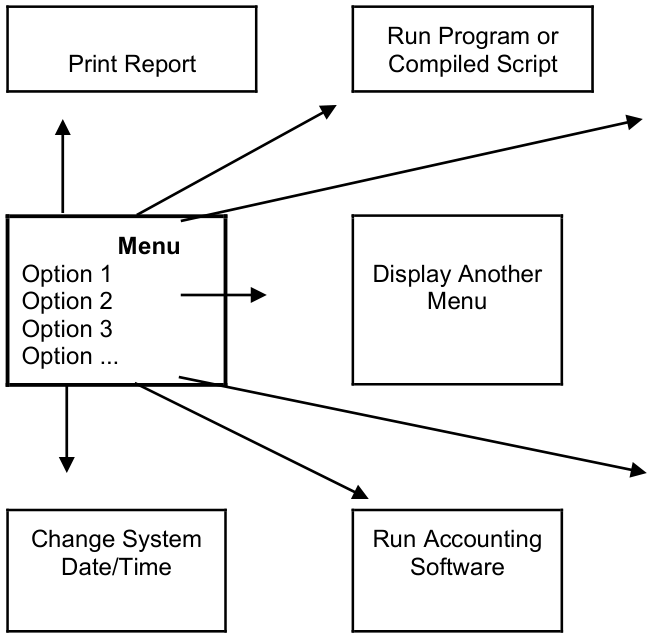
A menu is a listing of selections. These selections can include running programs, starting special procedures, starting database maintenance, calling other menus, or going to software other than Dictionary-IV. For more information on creating pop-up menus, see Help definition in this document.
Each selection is associated with a code and the information necessary to initiate the selection.
The Thoroughbred menu system makes on-line help for selections definable and controls access and use of menus and selections.
To create a menu you need to define three Classes: a menu, a screen, and a format.
Menu definition Define each possible menu selection and the action that will be taken when the user enters this selection.
Screen definition Create a user interface screen, which displays the selection codes as well as one selection input field. It may be a window or non-window screen.
Enter the list of menu selections and description of the screen. You must define one data field using the Data Name from the format.
For more information, see Screens in this document.
Possible Menu Selections
Format definition A logical format is needed for the menu screen. This format has only one data name, which is used for the collection of the menu selection. You can use the single Data Name format called IDMENUIN, which is provided in Dictionary-IV for menus, or create your own. If you create your own format, only the Data Name and length are required.
For more information, see Formats in this document.
OPENworkshop Menus
Section titled “OPENworkshop Menus”Selection
Section titled “Selection”Select 1-Edit from the Dictionary-IV Development Menu or press F1 from any Dictionary-IV menu. The system displays the Class pop-up menu:
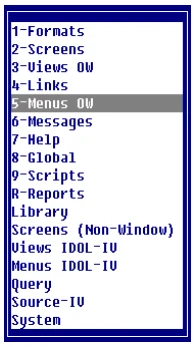
Select 5-Menus OW. The system displays the OPENworkshop Menus View.
OPENworkshop Menus class
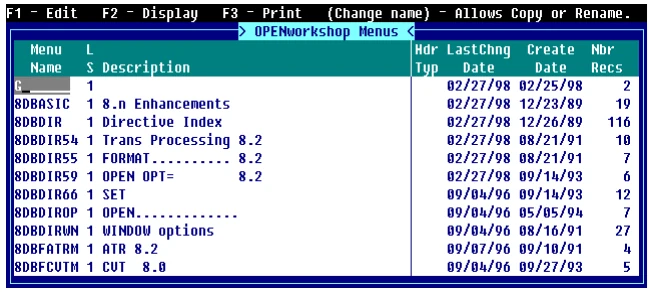
Components of OPENworkshop Menus View
Section titled “Components of OPENworkshop Menus View”The Menu definition is composed of three parts: header information, selection code (description), and selection specifications.
OPENworkshop Menu Header Information
Section titled “OPENworkshop Menu Header Information”The menu header information consists of the name and description of the menu, the name of the menu screen, the help module for the menu, and an optional password used for menu security.
You may enter the following information:
Menu Name
Type from 3 to 8 alphanumeric characters for the name of this menu. This field is mandatory.
Characters one and two are the Library name. Characters three through eight are the Menu Name.
For more information, see Class definition in this document, which provides a file naming convention you may implement.
LS
For internal use.
Description
Type up to 40 alphanumeric characters for the description of this menu. This field is optional.
OPENworkshop Menu Detail Information
Section titled “OPENworkshop Menu Detail Information”Help Header Title Type (Hdr Typ)
This field controls the use of the Menu, screen description in the window’s top border.
Select one of the following:
blank Screen description does not appear in the window title area.
- C
- Screen description is centered in the top border of the screen's window.
- R
- Screen description is right-justified in the top border of the screen's window.
- L
- Screen description is left-justified in the top border of the screen's window.
- The default is
- blank.
Last Change Date
Displays the date of the last change to the selected OPENworkshop Menu.
Create Date
Displays the date of creation of the selected OPENworkshop Menu.
Number of Records (Nmbr Recs)
Displays the number of records in the specified menu.
Creating/Editing OPENworkshop Menus
Section titled “Creating/Editing OPENworkshop Menus”Press F1 to create/edit an OPENworkshop Menu. For more information, see Pop-up menu help in this document.
Dictionary-IV Menus
Section titled “Dictionary-IV Menus”Selection
Section titled “Selection”Select 1-Edit from the Dictionary-IV Development Menu or press F1 from any Dictionary-IV menu. The system displays the Class pop-up menu:
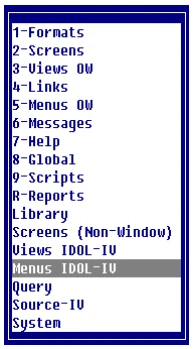
Select Menus Dictionary-IV.
Components of Dictionary-IV Menu View
Section titled “Components of Dictionary-IV Menu View”The Menu definition is composed of three parts: header information, selection code (description), and selection specifications.
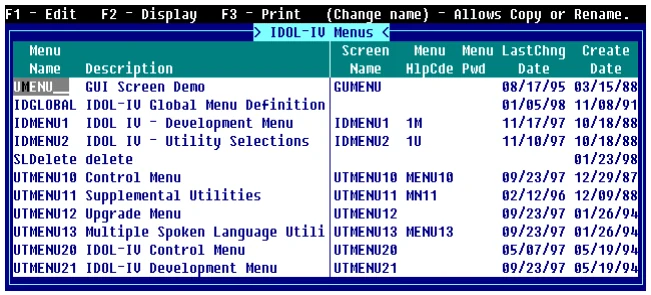
Dictionary-IV Menu Header Information
Section titled “Dictionary-IV Menu Header Information”The menu header information consists of the name and description of the menu, the name of the menu screen, the help module for the menu, and an optional password used for menu security.
You may enter the following information:
Menu Name
Type from 3 to 8 alphanumeric characters for the name of this. This field is mandatory.
Characters one and two are the Library name. Characters three through eight are the Menu Name.
For more information, see Class definition in this document, which provides a file naming convention you may implement.
Description Type up to 40 alphanumeric characters for the description of this menu and press Enter. This field is optional.
Dictionary-IV Menu Detail Information
Section titled “Dictionary-IV Menu Detail Information”Screen Name From 3 to 8 alphanumeric characters for the name of the screen this menu will use for user interface.
A screen must be defined for user interface with this menu. If you have already created one you may enter it now. If you have not already created one you do not need to enter the screen name now.
Press F1 to edit the screen.
Menu Help Code Specifies an optional name, which designates the help to be displayed when you press F6 at the menu selection prompt. The library in which the help is located is the same as that for the menu.
Type from 3 to 8 alphanumeric characters for the name of the help module. Press F1 to enter or edit help.
Enter or edit your help text. You may then go to Help definition to change these default settings. For more information, see Help definition. This field is optional.
Menu Pwd Type up to 3 alphanumeric characters for the password and press Enter. If the system security is active and a menu password is specified, the password is required to access the menu. This field is optional.
Last Change Date
Displays the date of the last change to the selected Dictionary-IV Menu.
Create Date
Displays the date of creation of the selected Dictionary-IV Menu.
Dictionary-IV Menu Editor
Section titled “Dictionary-IV Menu Editor”Menu Option (Opt)
This is a unique identifier for the menu items.
Entry Code
Use the selection code to initiate a menu selection.
The menu selection list displays a list of all of the selection codes and their descriptions. Only 18 are shown, but the list will scroll (up to 99) as you go past the last selection. The functions listed are available when you are in this area of the Menu definition screen.
Each menu selection specification displays the attributes of an individual menu selection code.
The following editing keys are available:
- Line Insert
- Enters a new selection and adjusts the order of the existing selections.
- Line Delete
- Deletes the selection code and the specifications. The F2 key also performs this function.
- F1
- Edits an existing menu selection and to enter the help definition window.
- F2
- Deletes the selection code and specifications. Press F2 and the selection code and specifications are deleted.
- F3
- Rearranges the existing order of the selections. Type the number of the selection you want to move followed by a comma. Type the number where you want it moved and press Enter. The move actually does an insert before, and then adjusts. So. if you move 3,4 or (3 to 4), the system will insert item 3 before item 4 and no changes will result from the move.
- F4
- Saves and exits the Menu definition.
- F5
- Changes the help window width. The system prompts: Help window width now xx, change to __. Type the new width and press Enter. The width may be from 2 to 74 characters. Once text is entered at the selected width, it is recommended that you do not change the width or text may be lost.
- F6
- Displays on-line help.
- F10
- Goes to another selection. The system prompts: Enter selection to go to. Type a selection number and press Enter. You may have as many as 99 selections.
Menu Selection Name Type up to 30 alphanumeric characters for the selection code and description. Codes can be from 1 to 4 characters. The description is optional and must begin after column 4.
The description is invisible to the user, except when using Thoroughbred VIP.
Duplicate selections for uppercase and lowercase are not needed in a menu definition. During selection processing the system tries to locate the selection first in uppercase and then in lowercase.
Selection Type (ST)
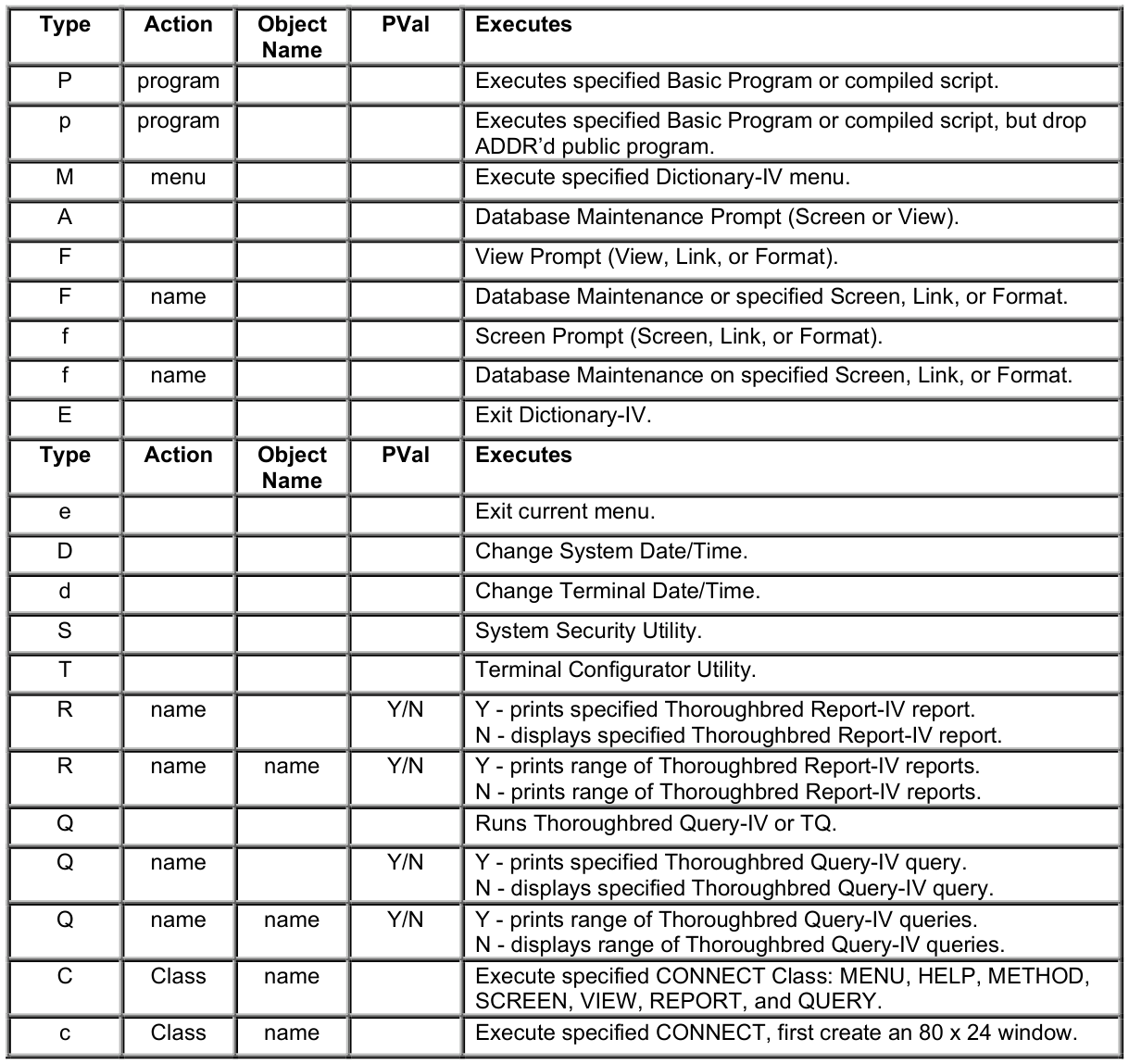
Specifies the type of action to be processed when this selection is made. This is a required field. Select one of the following:
- A
- (Uppercase) Executes database maintenance prompt (screen or view).
- C
- (Uppercase) Executes specified CONNECT.
- c
- (Lowercase) First creates an 80 x 24 window then executes specified CONNECT.
- D
- (Uppercase) Executes change system date/time.
- d
- (Lowercase) Executes change terminal date/time.
- E
- (Uppercase) Exits to Dictionary-IV copyright screen.
- e
- (Lowercase) Exits to the current menu.
- F
- (Uppercase) Executes view prompt (view, link, or format); with the screen, link, or format name executes database maintenance on the specified screen, link, or format.
- f
- (Lowercase) Executes screen prompt (screen, link, or format); with the screen, link, or format name executes database maintenance on the specified screen, link, or format.
- M
- (Uppercase) Executes the specified Dictionary-IV menu.
- P
- (Uppercase) Executes the specified Thoroughbred Basic program or compiled script.
- p
- (Lowercase) Executes the specified Thoroughbred Basic program or compiled script, but drops all Public Programs.
- Q
- (Uppercase) Run Thoroughbred Query-IV; with the query name print or display a specified query or range of queries.
- R
- (Uppercase) Run Thoroughbred Report-IV; with the report name print or display a specified report or range of reports.
- S
- (Uppercase) Executes System Security utility.
- T
- (Uppercase) Executes Terminal Configurator utility.
Action Type from 1 to 8 alphanumeric characters for the name of a program, Class, or definition to be accessed with this selection. Press Enter. This field is dependent upon the Type field and may not be required.
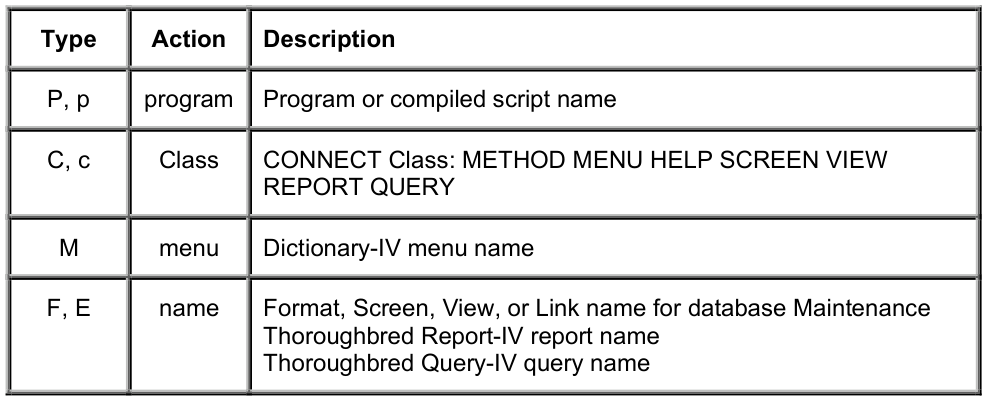
This field is required for the following types: M, P, and p.
It may be used with the following types: F (multi-record maintenance for a specified view, link, or format), f (single-record maintenance for a specified screen, link, or format), Q (to print or display a specified query or range of queries), and R (to print or display a specified report or range of reports).
Object When a menu selection executes a CONNECT (types C or c), the Object name is used to identify the name of the menu, help, screen, view, report, or query for the CONNECT.
When a menu selection executes a program (types P or p), the Object name is used to specify a Screen definition that will be processed before the program executes. All fields in the screen are collected and the resulting data passed to the program to be executed.
Pass Value (PV)
Specifies a variable to pass to a program.
- Y
- Prints a single definition or a range of definitions.
- N
- Displays a single definition or a range of definitions.
- printer-id
- Prints a report or query to the designated printer.
If you select Y with a type Q and specific Query name(s), the system prints the specified Query definition or range of definitions. If you select N and specific Query name(s), the system displays the specified query definition or range of definitions.
If you select Y with a type R and specific report name(s), the system prints the specified report definition or range of definitions. If you select N and specific report name(s), the system displays the specified report definition or range of definitions.
The printer-id will print a single report (query) or a range of (queries) to the designated printer.
Any 2-character value entered in this field is passed to the Script-IV variable MENU-PARMS. For more information, see the Script-IV Language Reference.
Help Specifies an optional help module to be displayed when the selection code is entered followed by pressing F6 during menu processing. You may use an existing help module or create the help using standard help editing features.
To create help, type from 1 to 6 alphanumeric characters for the module to be displayed and press Enter. The Library in which the help module is located will be the same as that for the menu.
Any help created in the menu can also be accessed through Help definition maintenance.
Press F1 to enter or edit help.
You may then go to Help definition to change these default settings. For more information, see Help definition in this document. This field is optional.
Password (Pwd)
Type from 1 to 3 alphanumeric characters for the selection password and press Enter.
If system security is active and a menu password is specified, the password is required to execute a selection.
Terminal List (TL)
Press Enter to access. Use this field to allow access to or restrict access from the specified terminals. The syntax is the same as Link definition. For more information, see Link definition.
0, term-code [,term-code]...- 0
- Allows access to the specified terminal codes.
- term-code
- Type the 2 alphanumeric character terminal codes for the terminals that can access this selection.
1,term-code [,term-code]...- 1
- Denies access to the specified terminal codes.
- term-code
- Type the 2 alphanumeric character terminal codes for the terminals that cannot access this selection.
- If this
- is left blank all terminals have access.
Examples:
0,T0, T3
Allows access for terminals T0 and T3.
1, T1
Denies access for terminal T1.
Operator List (OL)
Press Enter to access. Use this field to allow access to or restrict access from the specified operators. The syntax is the same as Link definition. For more information, see Link definition.
0, oper-code [,oper-code]...- 0
- Allows access to the specified operator codes.
- oper-code
- Type up to 3 alphanumeric characters for the codes of the operators that can access this selection.
1,oper-code [,oper-code]...- 1
- Denies access to the specified operator codes.
- oper-code
- Type up to 3 alphanumeric characters for the codes of the operators that cannot access this selection.
- If this
- is left blank all operators have access.
Examples:
0,JBT, NRS
Allows access for operators JBT and NRS.
1, JMG
Denies access for operator JMG.
Menu Exit Message (ME)
Press Enter to access. Type a special prompt or message to be displayed after leaving the menu and before the menu selection is initiated. You may enter a message in this field or specify a message from the Message definition list.
Message Dictionary
dictionary;type,number[,disp-Mode [,clear[,(col,row)]]]or
@(col,row[,disp-mode])]msg- dictionary
- is the name of the Dictionary-IV Message Dictionary.
- type
- select one of the following message types: P prompt/constant. N non input (with suffix and Enter). n non-input (without suffix or Enter). x non-input (without suffix and wait for Enter).
- number
- is the number of the message in the dictionary.
- disp-mode
- is one of the following: blank foreground. B background. F foreground. R reverse video foreground. r reverse video background.
| Defaults | to R. | ||
|---|---|---|---|
| clear | enter | one of the following: | |
| A | clear line before and after. | ||
| B | clear line before. | ||
| C | clear line after. | ||
| D | clear message area after. | ||
| E | clear screen before and after. | ||
| F | clear screen before. | ||
| G | clear screen after. | ||
| X or blank | do not clear before or after. Blank | ||
| defaults to the code from the dictionary | |||
| definition. |
- col
- is the starting column position of the display. The default is the dictionary definition position.
- row
- is the starting row position of the display. The default is the dictionary definition position.
- msg
- is the message to display. It may be from 1 to 132 characters and may display on two lines (depending on length and location).
- Exit messages
- are not processed for menu selection type “M” (the selection of another
Dictionary-IV menu).
Examples:
IDMSGS;P, 10
Displays the prompt/constant message number 10 from the dictionary.
IDMSGS;N,12,R,A,(20,2)
Displays the non-input message number 12 from the IDMSGS dictionary. The message is displayed in reverse video at column 20, row 2 and the message area is cleared before and after the message is displayed.
Open Files (OF)
Press Enter to access. This field is mainly used to interface with 3GL applications. For developers who wish to use menu selection to run an application program, this option automatically opens files for the application program. In addition, this item can automatically open a printer and the user terminal.
List the file names that will open when this selection is made. This cannot be used with Script-IV.
channel,file-name[;channel,file-name]...- file-name
- is the 1 to 8 alphanumeric character name of the file to be opened. The following two names can be used: 'TERMINAL' opens the user terminal. 'PRINTER' prompts for the printer if and opens it.
If any file cannot be opened a message is displayed and the system returns to the menu.
Example:
1,CCSMS;2,CINVI;6,‘PRINTER’;3,‘TERMINAL’; 8PRMSTR
Channel 1 opens to CCSMS, channel 2 opens to CINVI, channel 6 opens to the printer, channel 3
opens to the user terminal, and channel 8 opens to PRMSTR.
Conflict Test (CT)
Press Enter to access. Conflict processing ensures that once a file is opened for maintenance, another operator cannot open it. This is done by setting a flag.
This statement tests conflict flags for a condition to determine whether the menu selection is to be executed. If any flags indicate a conflict, a conflict message displays and the selection is denied.
table:flag rel-oper val[log-oper flag rel-oper val...]- table
- is the conflict table name. The table must be created using the Multi-Tasking Information utility before it can be used. For more information, see Multi-Tasking Information in the Dictionary-IV Administrator Guide.
- flag
- is the type of flag (alphanumeric or numeric) and the flag number in the table. Flags are specified in the format: type.number type select one of the following: A alphanumeric. B numeric. number is the flag number from 1 to 120.
- rel-oper
- is the relational operator. For more information, see Common Syntax Elements in the Dictionary-IV User Guide.
- val
- is a constant, flag value, or expression that results in a numeric value from 0 to 255 or a 1 alphanumeric character value to be assigned to the flag.
- log-oper
- is the logical operator used to specify multiple tests. For more information, see Common Syntax Elements in the Dictionary-IV User Guide.
Example:
PRMT1:A.1=$00$ AND N.1 = 0
In the conflict table PRMT1, if alphanumeric flag A.1 contains the NULL character ($00$) and
numeric flag N.1 is equal to 0, the menu selection is allowed to execute.
Conflict Set (CS)
Press Enter to access. Conflict processing ensures that once a file is opened for maintenance, another operator cannot open it. This is done by setting a flag.
The set flags statement is used to set conflict flags before the selection is executed.
table:flag=val[,flag=val...]- table
- is the conflict table name. The table must be created using the Multi-Tasking Information utility before it can be used. For more information, see Multi-Tasking Information in the Dictionary-IV Administrator Guide.
- flag
- is the type of flag (alphanumeric or numeric) and the flag number in the table. Flags are specified in the format: number.type type select one of the following: A alphanumeric. B numeric. number is the flag number from 1 to 120.
- val
- is a constant, flag value, or expression that results in a numeric value from 0 to 255 or a 1 alphanumeric character value to be assigned to the flag.
Example:
PRMT1:A.1 = “A”,N.1 = N.1 +1
In conflict table PRMT1, alphanumeric flag A.1 is set to “A” and numeric flag N.1 is incremented by 1.
Conflict Reset (CR)
Press Enter to access. Conflict processing ensures that once a file is opened for maintenance, another operator cannot open it. This is done by setting a flag.
The reset flags statement is used to set conflict flags after the selection has been executed and when the user returns to the menu.
table:flag=val[,flag=val...]- table
- is the conflict table name. The table must be created using the Multi-Tasking Information utility before it can be used. For more information, see Multi-Tasking Information in the Dictionary-IV Administrator Guide.
- flag
- is the type of flag (alphanumeric or numeric) and the flag number in the table. Flags are specified in the format: type.number type select one of the following: A alphanumeric. N numeric. number is the flag number from 1 to 120.
- val
- is a constant, flag value, or expression that results in a numeric value from 0 to 255 or a 1 alphanumeric character value to be assigned to the flag.
Example:
PRMT1:A.1 = “A”,N.1 = N.1 + 1
In conflict table PRMT1, alphanumeric flag A.1 is set to “A” and numeric flag N.1 is incremented by 1.
Creating the Screen Interface (If You Use IDMENUIN)
Section titled “Creating the Screen Interface (If You Use IDMENUIN)”You must create a user interface screen for menu processing.
The name of the screen must be the same as the screen name in the Menu definition header.
At the link/format field, the system displays the following message at the top of the screen:
For a Menu Screen, use IDMENUIN as the Link/Format.
You may type IDMENUIN and press Enter or define your own link/format. For more information, see “Creating the Menu format.” Also see Format definition.
You may create a standard or window screen.
In your Screen definition list the menu selections and descriptions. You must define one data field using the data name from the format.
IDMENUIN creates a data field named MENU-SELECTION. It can be placed anywhere on the screen and represents the area in which the user enters the menu selection.
For more information on screen creation, see Screen definition in this document.
Creating the Menu Format (If You Do Not Use IDMENUIN)
Section titled “Creating the Menu Format (If You Do Not Use IDMENUIN)”Create a format with one Data Name with a length equal to the largest selection code. This Data Name will be used in the menu screen for menu selection.
If you do not define a format use IDMENUIN (a one Data Name format with a length of 9). For more information about IDMENUIN, see “Creating the screen Interface” in this document.
Modifying a Menu
Section titled “Modifying a Menu”A Menu definition can be changed. Selections can be added, deleted, or modified, but you should update the menu screen accordingly. If you add a selection code, which exceeds the length of the Data Name defined in the menu format, remember to change the Data Name length in the format.
To edit selection specifications, position the cursor on the selection code and press F1. The system now positions the cursor at the Type field. Move through all of the fields or use F4 to return to the selection code list. Press F4 to save and exit the definition.
Accessing a Menu
Section titled “Accessing a Menu”A menu can be accessed from any Dictionary-IV menu by typing a semi-colon followed by the menu name at the selection prompt and pressing Enter. For example, type ;TPMENU at the selection prompt and press Enter to display the menu TPMENU.
A menu can also be tied to an operator code so that after login operator is automatically brought to the menu. For more see Operator Information in the Dictionary-IV Administrator Guide.
The password (if one was specified for the menu and system security is active) is required before the menu screen is displayed. If it is not given, the operator is returned to the previous menu. If the correct password is entered, the screen is displayed and the menu accessed.
The following is a summary chart of Type/Action/Object Name/Pass Value and the actions they execute:
From the Dictionary-IV Developer Guide, version 8.9.1. Open this page in the PDF