

Components of Screen View
The Screen definition is composed of two parts: the screen header information and the Screen Editor.
Screen View Header Information
Section titled “Screen View Header Information”The screen header information consists of the name, description, link/format name, screen size and position, help size and position, and the header title location. It also displays the date and time that the screen was last changed and the language code.
Screen Name
Type from 3 to 8 alphanumeric characters for the name of this screen. This field is mandatory.
Characters one and two are the Library name. Characters three through eight are the screen name.
For more information, see Class definition in this document, which provides a file naming convention you may implement.
Link/Format Name
Specifies a 2-character library name followed by a 1 to 6-character link name.
This associates the screen to the link or the format and data files. You can then use this screen for CONNECT SCREEN, Script-IV, and 8INPUT.
Press F2 to lookup the available Link definitions.
If you do not intend to use the screen for data entry or menu selection, a format is not necessary.
The default is the name of the Screen definition.
Description
Type up to 40 alphanumeric characters for the description of this screen. This field is optional.
Screen Window Flag (WF)
Displays a Y if this is a windowed screen. Displays an N if this is a non-windowed screen. All Object-oriented screens are windowed by default.
After Read Method You may use this field only if you have installed OPENworkshop. It contains the name of a developer-supplied method that will be called after each record is read and before it is displayed. Refer to OE.OEACUST as a guide to developing After Read Methods. Type the 8-character name or press F1 (or F2) to select and edit the method. For more information, see the OPENworkhop Reference Manual.
Screen Help
Defines the name of the help displayed for the Screen.
Header Type This field controls the use of the screen description in the window’s top border. It is only available if you have defined this screen as a window.
For non-windows you can define the header title in the Screen Editor. For more information, see “Using the Screen Editor” in this document.
Select one of the following:
blank Screen description does not appear in the window title area.
- C
- Screen description is centered in the top border of the screen's window.
- R
- Screen description is right justified in the top border of the screen's window.
- L
- Screen description is left justified in the top border of the screen's window.
- The default is
- blank. If this is a non-window, the system positions the cursor at the Screen Editor.
GUI Scrn Type If running a character application, this field can be ignored. If running VIP, select one of the following:
- 3
- Defines the GUI Screen Type as a graphical screen.
- 4
- Defines the GUI Screen Type as a graphical template.
Last Change Date
Displays the date of the last change to the selected Screen.
Create Date
Displays the date of creation of the selected Screen.
Screen Editor
Section titled “Screen Editor”Press F1 in the Screen Name field to select the Screen Editor.
If this is a windowed screen the system displays the Screen for editing. Below is an example:
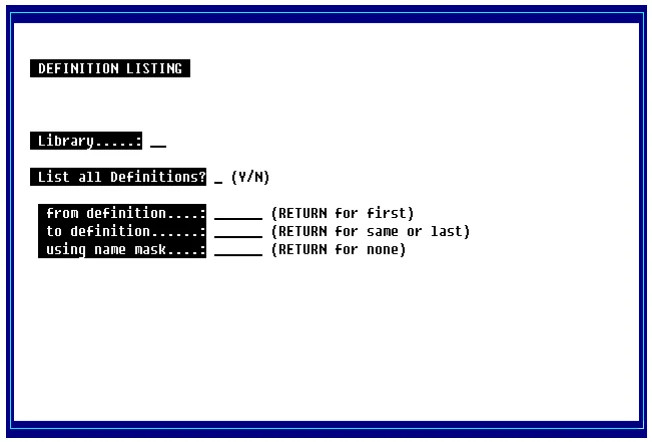
If this is a non-windowed screen the system prompts:

When you press Enter the system opens the Screen Editor. If, however there is a size conflict, the system prompts:
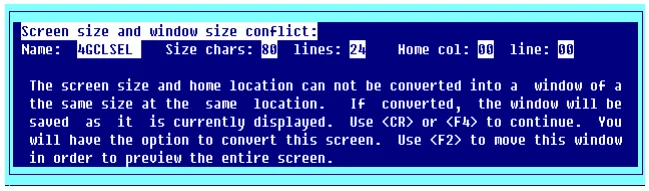
When you press Enter or F4 the system prompts:
Convert?
Select one of the following:
- Y
- Converts to a windowed screen.
- N
- Exits the screen editor.
You may now edit the Screen.
From the Dictionary-IV Developer Guide, version 8.9.1. Open this page in the PDF