

Specify a Data Source
Open the Microsoft Windows Control Panel.
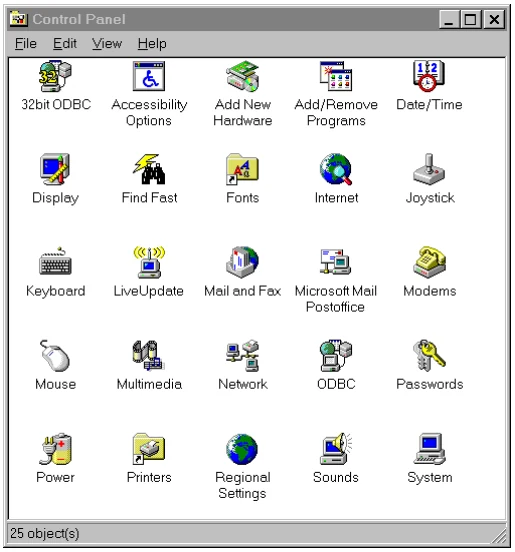
Select the 32bit ODBC icon. The ODBC Data Source Administrator dialog box will be displayed:
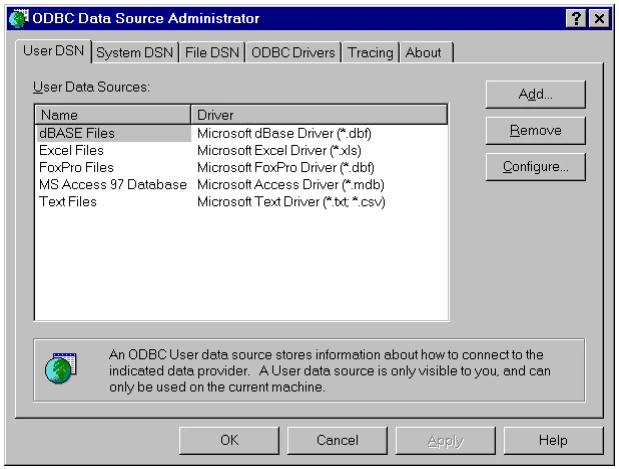
Press the Add… button. The Create New Data Source dialog box will be displayed:
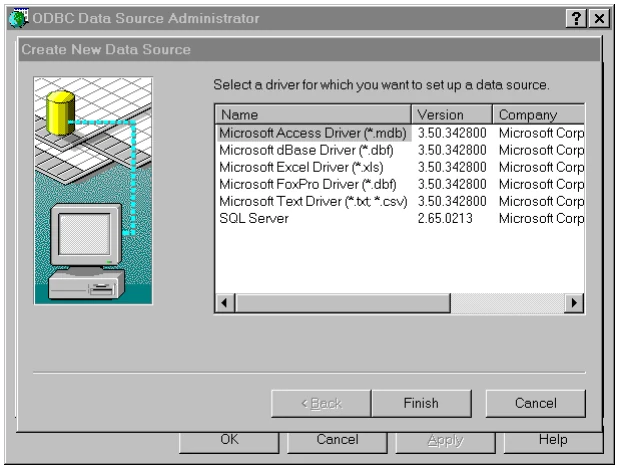
Select the Microsoft Access Driver (*.mdb) option. The ODBC Microsoft Access Setup dialog box will be displayed:
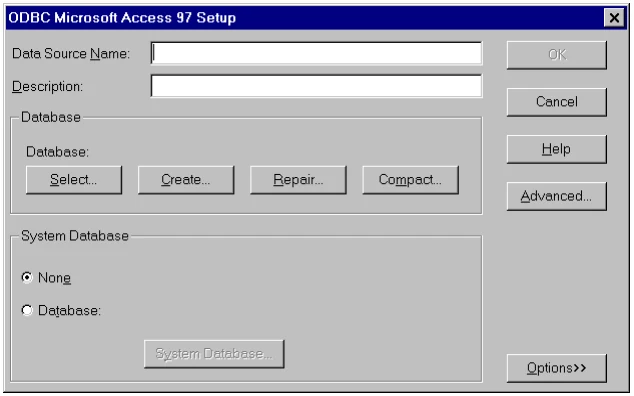
Provide a name for the data source in the Data Source Name: text box. Provide a description of the data source in the Description: text box. In the System Database panel, make sure that the None button is selected.
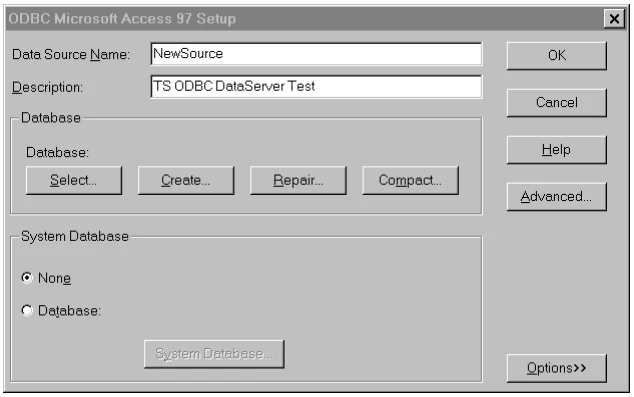
The Data Source Name: is NewSource. To associate the Microsoft Access NewTest.mdb database with this data source, go to the Database panel and press the Select button. The Select Database dialog box will be displayed:
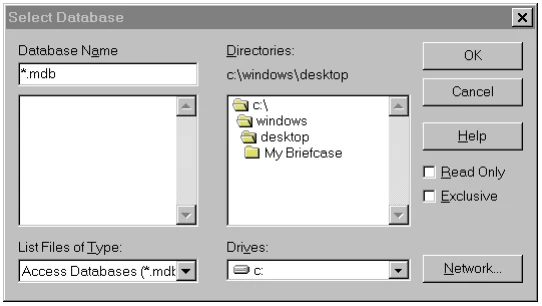
Select the Microsoft Access NewTest.mdb database, and press the OK button. You will return to the ODBC Microsoft Access Setup dialog box.
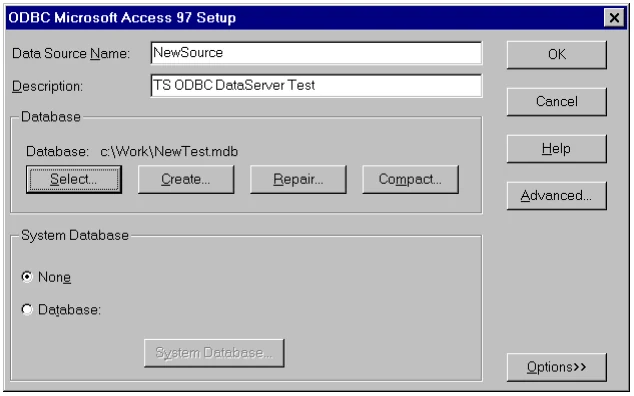
In the Database panel, the Database: descriptor displays the full path name for the NewTest.mdb file. Press the OK button. You will return to the ODBC Data Source Administrator dialog box. To exit, press the OK button.
Close the Microsoft Windows Control Panel.
From the ODBC Client Capability Supplement, version 8.9.1. Open this page in the PDF