

Creating Data Fields
Data Name fields are the fields where data will be input during file maintenance or in a script.
The names and attributes of these fields are defined in the format for the screen.
Multiple occurrence Data Names can be used as well as single elements. A data field is created by entering the Data Name in the data field window. The screen displays underscore characters on the screen equal to the field length.
Display Data Names
Section titled “Display Data Names”From a window screen this option allows you to create field descriptions for these fields. The descriptions are based on criteria you set by pressing F7 from this option.
Press F10 and the system displays the Data Names. Press F7 and the system displays the following:
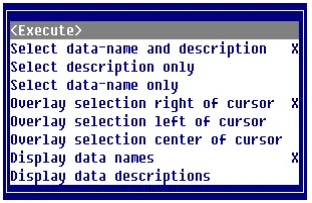
Use this option to:
- Select what is placed in the editor when an item is selected from the Data Name view (Data Name only, Data Description only, or both the Data Name and description.).
- Place the selected item.
- Determine whether the Data Name view contains Data Names or Data Descriptions.
Select one of the following:
<Execute>
Exits and applies the changes.
Select data-name and description
Returns formula and description.
Select description only
Returns description text only.
Select data-name only
Returns formula only.
Overlay selection right of cursor
Puts the selection to the right of the cursor.
Overlay selection left of cursor
Puts the selection to the left of the cursor.
Overlay selection center or cursor
Centers the selection on the cursor.
Display data names
Displays data-names in the view.
Display data descriptions
Displays data descriptions in the view.
Select one of the Data Names or descriptions and press Enter. The system places the name/description (based on the criteria you set) and a place for the data entry (based on the attribute settings in Format definition).
Defining Data Fields
Section titled “Defining Data Fields”To define a formula or qualify input of a Data Name (masking, size of input field, multiple occurrences) in a screen, place the cursor where the field will be located and press F5. A definition window opens and you can type in a valid Data Name or expression.
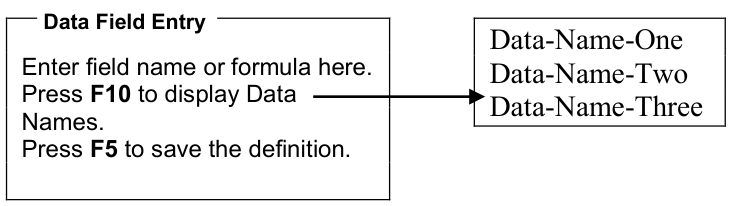
Once in the definition window, you can use F10 to display a view of Data Names in the format. The standard view movement keys can be used to scroll through the names (for example, Up Arrow and Down Arrow keys), and press Enter to select a name and bring it into definition window, or press F4 to exit.
If an expression is used, the value is only for display and cannot be changed in maintenance. This is referred to as a formula. For information, see Computed Data Field Syntax (Formulas) in this document.
Select the Data Name and Press F5 to Save.
Editing the Data Field Window
Section titled “Editing the Data Field Window”The following functions are available in the data field window:
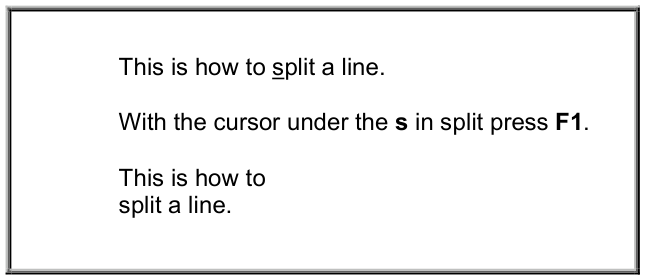
Split the Line Press F1 to split the line where the cursor is located. The text from the cursor position to the right will be relocated to a newly inserted line.
Join the Line
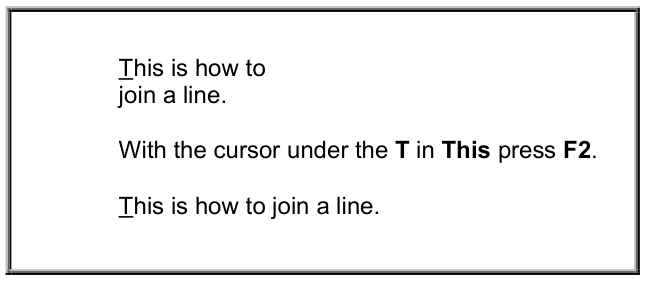
Press F2 to join the following line to the end of the cursor line.
Exit without Saving
Press F4 to exit the data field definition window without saving.
Save and Exit Press F5 to save and exit the definition or press F4 to exit without saving. If you have entered a nonexistent Data Name or incorrect syntax, pressing F5 to save the data field will result in an error message.
If you get an error message, check the following:
- Data Name spelling including hyphens and capitalization.
- The spelling and format of a /FIELD(width)= command. For more information, see Input Window for a Data Field in this document.
- Masking formats.
- Calculation syntax and logic.
On-line Help
Press F6 to display on-line help.
Expand the window
Press F9 to expand the window.
Display the Data Name List Press F10 to display a view of element names in the format. Use the standard view selection keys to scroll through and select an element name.
- Up Arrow, Down Arrow, Home, Page Up, and Page Down scrolls the view.
- Enter selects the Data Name, exits the list, and brings the name into the window.
- F4 exits the Data Name list and returns to the data field definition window.
Input Window for a Data Field
Section titled “Input Window for a Data Field”An input window can be created for a data field by preceding the Data Name with:
/FIELD(len)=- len
- is the length of the window, which is shorter than or equal to the element length. The field will scroll horizontally to accept the maximum length entry defined for the Data Name in the format.
From the Dictionary-IV Developer Guide, version 8.9.1. Open this page in the PDF