

Compile Source
To access the compile options, select Compile Source from the Source-IV Main Menu. The system displays the following pop-up menu:
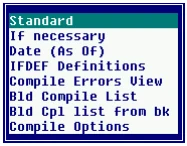
Standard When you select Standard the system allows the standard compile options to be presented. Single or multiple Source document(s) can be compiled.
If necessary When you select If necessary only Source documents that have been changed since their last compile date/time will be compiled. The option to select a single or multiple Source document(s) will be given.
In addition to checking the last changed date of the Source, this option also searches the Source in the selected range and compares the changed date of any definitions (i.e. Formats, Screens, etc.) or INCLUDE Source used, with the compile date. Any Source which uses a definition or INCLUDE Source with a more recent change date than the compile date is compiled.
Date (As Of)
When you select Date (As Of) the system displays the following:

You can then enter the date (mmddyy) that will be used to compare the Source documents last change date. If the last change date is less than or equal to the date entered, then the Source document will be compiled. Pressing Enter will apply today’s date. Only Source documents that have been changed on or after the date specified will be compiled.
The following input window appears if you select Standard or If necessary from the pop-up menu. The same input window appears when Date (As Of) is selected and you type the date and press Enter:
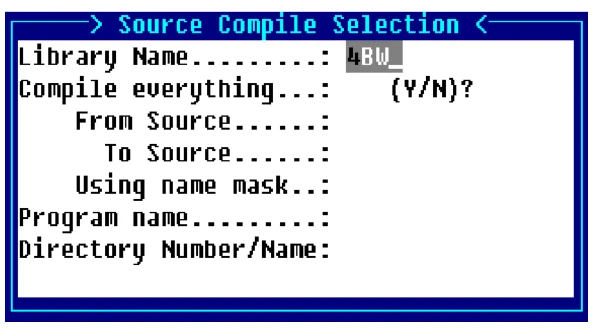
Library Name
This is a name that is used to specify a library in which Source documents are kept. The library name can
be from 1 to 4 characters long and can consist of any combination of letters, numbers, or characters
except (spaces ? / \ * [ ] @).
At this field you can press F2 to display a view of library names. This list contains all the currently
defined libraries. The Up Arrow and Down Arrow keys can be used to scroll to the desired library name. Pressing Enter will select that library name. The last library name used by the editor will be automatically displayed in this field. Pressing Enter will select that library.
Compile everything?
- Y
- Every Source in the library will be selected for compile.
- N
- An option to enter a range or a single Source for compile will be given.
From Source Enter the name of the first Source document. If you want to start with the first Source document in the library, press Enter.
At this field you can press F2 to display a view of Source documents in the selected library. The Up Arrow and Down Arrow keys can be used to scroll to the desired Source document. Pressing Enter will select that Source document.
To Source Enter the name of the last Source document to be selected. If you pressed Enter on the From Source field and you want to end with the last Source document in the library, press Enter. Otherwise pressing Enter will apply the same name as the name entered in the From Source field.
At this field you can press F2 to display a view of Source documents in the selected library. The Up Arrow and Down Arrow keys can be used to scroll to the desired Source document. Pressing Enter will select that Source document.
Using name mask A mask allows selection of similar names without specifying each individual name. The mask specifies which part of the name must match exactly and question marks are used to indicate that any characters in the same position as the question mark are allowed.
Examples:
mask ABC??? (selects names that begin with ABC)
mask 12??ab (selects names starting with 12 and ending with ab)
To select names:
AAA123 AAA456 AAArty AAABCD AAAQWE
Use mask: AAA???
To select names:
12TT34 RTTTTT TTTT aaTT 1TTT23
Use mask: ??TT??
Program name Contains the name of the executable object file that is to be created by the compile. The default name is the Source document name.
Be sure to avoid characters, which may be restricted on some systems and invalid as file names (spaces ? / \ * [ ] @).
If an executable object file name is found that matches the Source document name, this field will automatically be filled in and control will go directly to the Correct? confirmation.
Directory Number/Name Enter the number or the name of the directory into which the executable object file(s) will be placed. This information will not be requested if a version of the executable object already exists on an enabled directory.
Examples:
1
IDL4
Utils
- Note:
- The default directory will be the directory where the dictionary (IDDBD) is located.
IFDEF Definitions
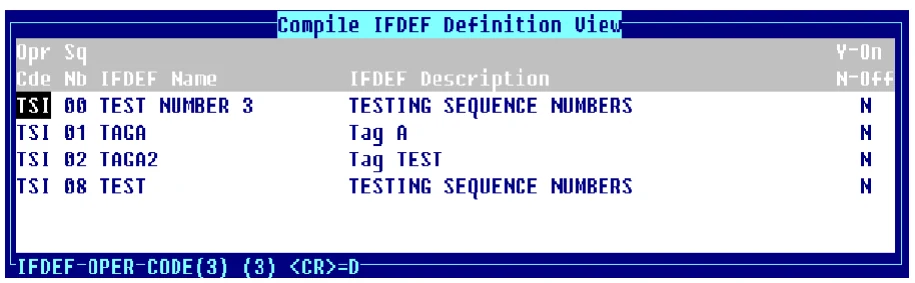
When you select IFDEF Definitions the system displays the Compile IFDEF Definition View:
- Note:
- Maintenance can be performed within the view, for more information see the Dictionary-IV User Guide.
This selection allows the definition of IFDEF values, which are used for conditional compiling.
The input fields in the Compile IFDEF Definition editing screen are as follows:
Opr Cde
The system displays the operator code of the IFDEF Definition selected.
Sq Nb This is the sequence number used to assign a unique value to an IFDEF Definition. This value can have a range from 0 to 99.
IFDEF Name This field contains the name of the IFDEF Definition. This is the name that will be specified in the Source document. This name can be from 1 to 20 characters.
IFDEF Description This field contains a description of the IFDEF Definition. This field is used for documentation purposes only.
ON Y/N This field defines whether or not the IFDEF Definition is active (Y) or inactive (N) when Source compilation is performed.
IFDEF definitions are optional compile switches that can be incorporated in Source code to control which Source code statements or segments are to be included in the executable program. The IFDEF Definition option on the menu allows you to create, delete, enable, or disable an IFDEF Definition. The definitions are defined by operator code and are automatically assigned a sequence number. You then enter the IFDEF name. This is the switch or tag that is used in Source code. You also supply a description. You can then either turn a switch on or off.
Example:
#IF TAGALET A$="A"#ELSELET A$="B"#ENDIFIn the above example, if the IFDEF named TAGA which was created in the IFDEF Definition screen is enabled then the executable program will contain LET A$=“A”. If TAGA is not enabled, then the executable program will contain LET A$=“B”.
The Compile IFDEF Definition View displays the IFDEF Definitions based on the operator at login time. To edit the IFDEF Definition sequence number, name, description, or ON Y/N fields, highlight the IFDEF Name from the Compile IFDEF Definition View and press Enter.
To add a new IFDEF Definition press Line Insert from the Compile IFDEF Definition View the system allows you to enter a new IFDEF Definition.
The Compile IFDEF Definition View displays the operator code, sequence number, IFDEF Name, IFDEF Description and the ON Y/N (active or inactive) fields.
Compile Errors View This selection displays the Library.Source name, statement number and the syntax error description for each compile error encountered.
Bld Compile List
The system prompts:
Enter the compile list file name: 8SCcpxx:If the compile list file name already exists the system prompts:
Compile list already exists. Do you want to Append (Y/N)?Enter Y to append or N to recreate the compile list.
The system then prompts:
Enter library name.Enter a Source-IV library name.
The source modules in that library are added to the compile list file. The system then brings you back to the Enter Library Name prompt where you can enter another Source-IV library name or you can press F4 to go back to the Bld Compile List option on the Source-IV Compile Menu.
Bld Cpl list from bk
The system prompts:
Enter name for the backup file 8SCbkxx:The system then prompts:
Enter the compile list file name 8SCcpxx:If the compile list file name already exists the system prompts:
Compile list already exists. Do you want to Append (Y/N)?Enter Y to append or N to recreate the compile list.
This creates a compile list file based on the contents of a Source-IV backup file. If you have a Source-IV backup file restored this allows you to compile those modules.
Compile Options
Source-IV has been enhanced to erase all copies of a compiled program accessible from the IPL DEV lines. This feature is enabled by default. It can be modified at the operator code level. From the main Source-IV menu select Compile Menu then select Compile Options. To disable this feature set Erase Programs to “N”. If this parameter is not set the default value of “Y” will be applied when source is compiled.
The system displays the following window:
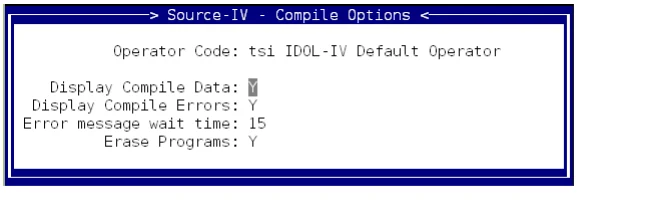
Make your selections for how to display your compile list and press Enter to accept these.
From the Source-IV, version 8.9.1. Open this page in the PDF